

This guide shows the 15 steps of the RedMind tutorial “Create your first portfolio”. Each step has a screenshot, the action and the details. Select a screenshot to zoom.
The RedMind Terminal and most exchange screens are in Portuguese. This guide gives each label as it shows on the screen, with the translation in parentheses.
1

Open RedMind AI from the menu

In the sidebar, click RedMind AI and, if an old chat shows, click Nova conversa (New chat).
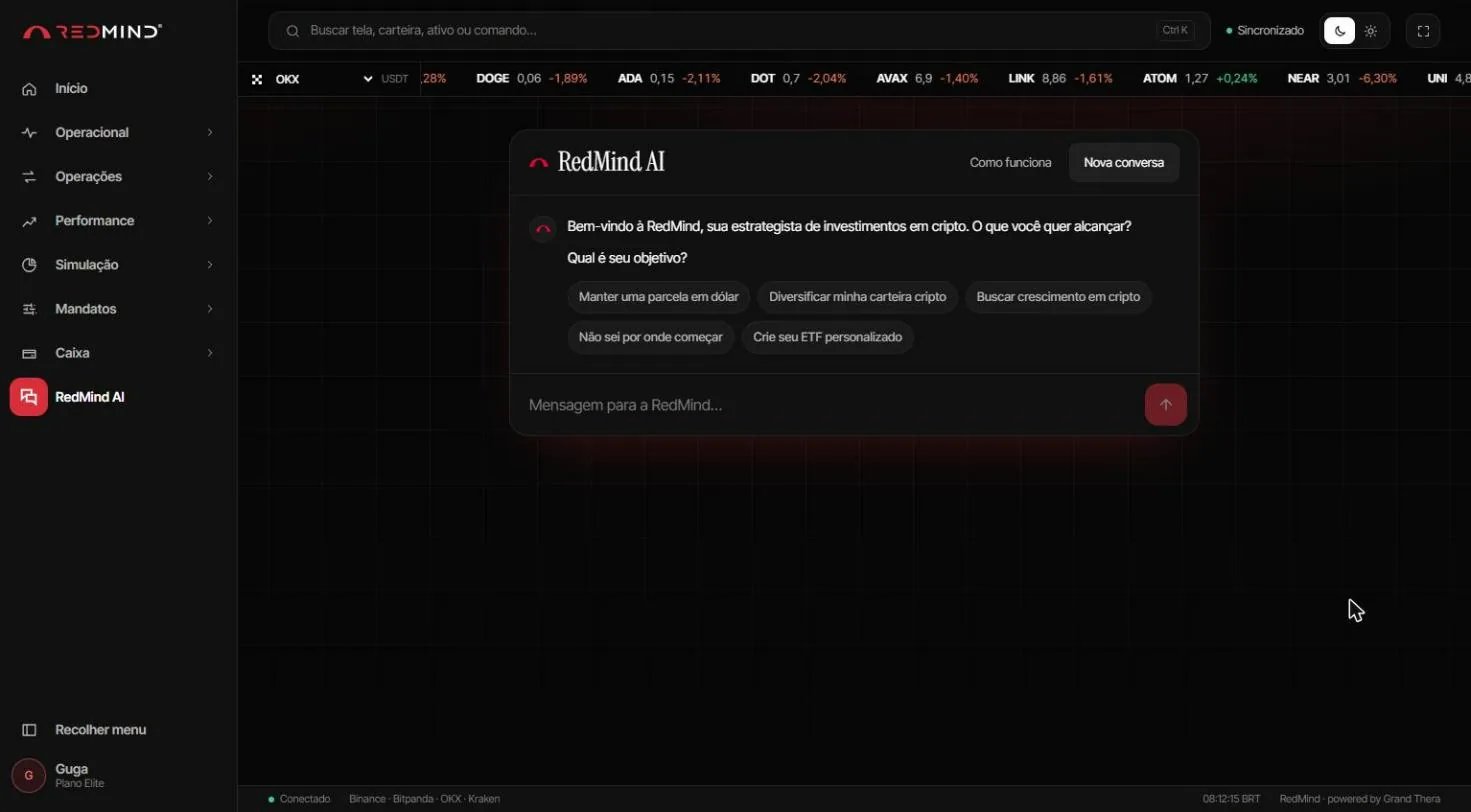
Open RedMind AI from the menu
In the left sidebar, click RedMind AI. If an old conversation appears, click Nova conversa (New conversation) at the top of the chat.RedMind AI asks what your goal is and shows suggestions, such as Diversificar minha carteira cripto (Diversify my crypto portfolio) or Crie seu ETF personalizado (Create your custom ETF). You can click a suggestion or write your own request.
2

Describe your portfolio in natural language

Type what you want in the Mensagem para a RedMind (Message to RedMind) field and press Enter.
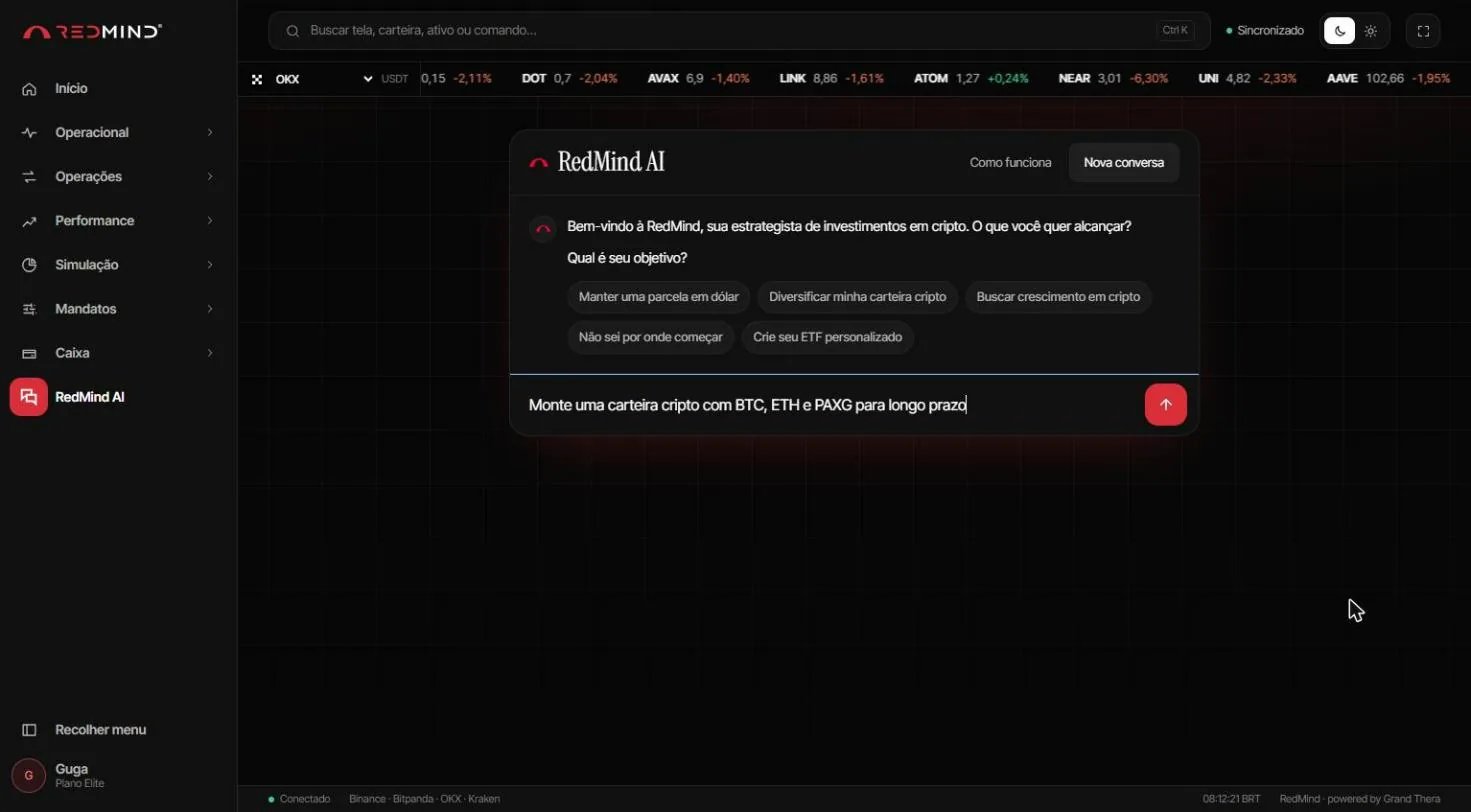
Describe your portfolio in natural language
Type what you want in the Mensagem para a RedMind… (Message to RedMind…) field. Example: “Build a long-term crypto portfolio with BTC, ETH and PAXG”.You can be general (“defensive crypto-focused portfolio”) or specific (“30% BTC, 20% ETH, 50% PAXG”). The AI understands both.Press Enter or click the red send button.
3

Choose the exchange

Click the exchange where you have an account, for example Binance.
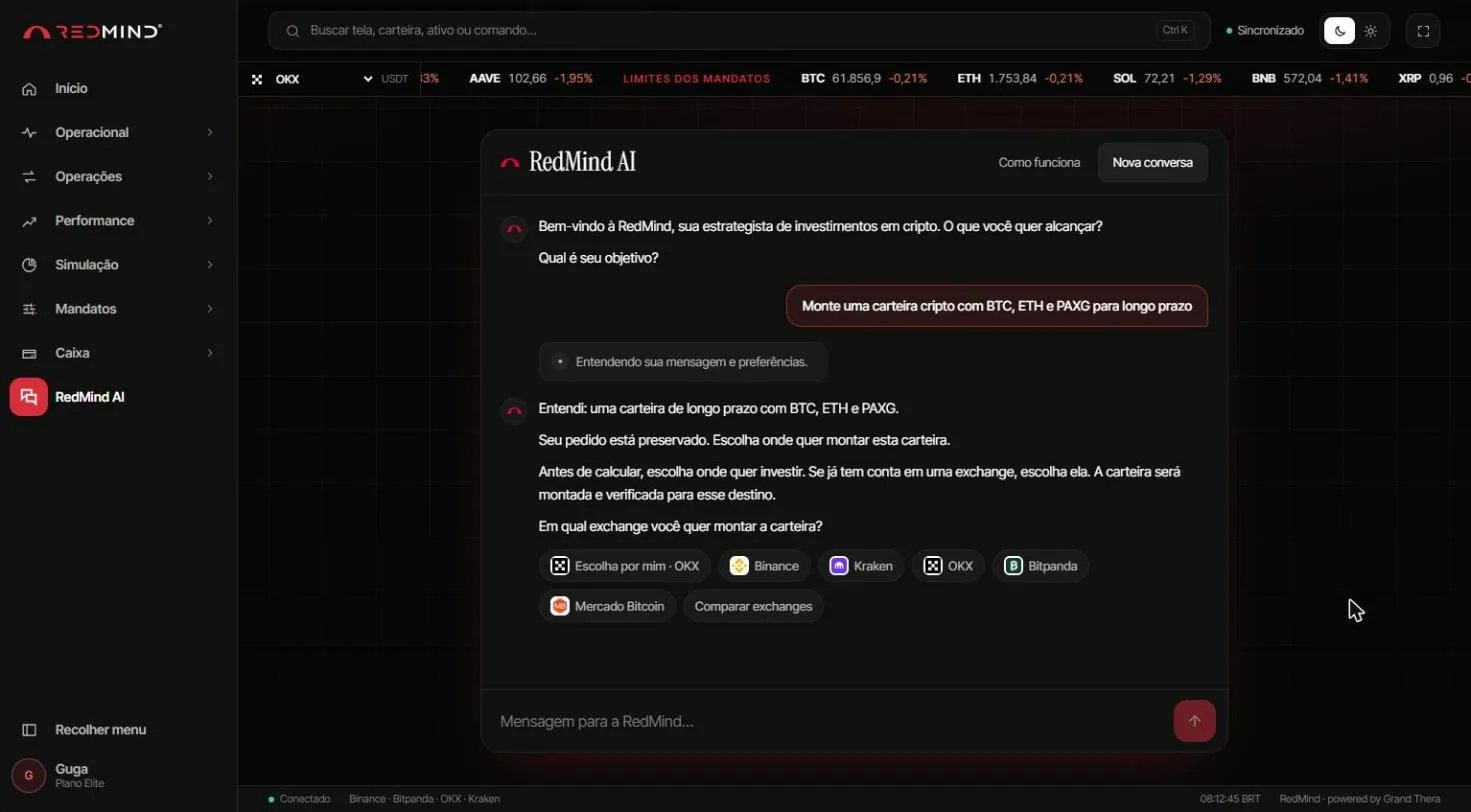
Choose the exchange
RedMind AI sums up your request and asks Em qual exchange você quer montar a carteira? (Which exchange do you want to build the portfolio on?) The portfolio is built and checked for that destination.Click the exchange where you have an account (for example, Binance). If you are not sure, click Escolha por mim (Choose for me) or Comparar exchanges (Compare exchanges).
4

Watch the processing in real time

Wait until the three items show ✓. You do not need to click.
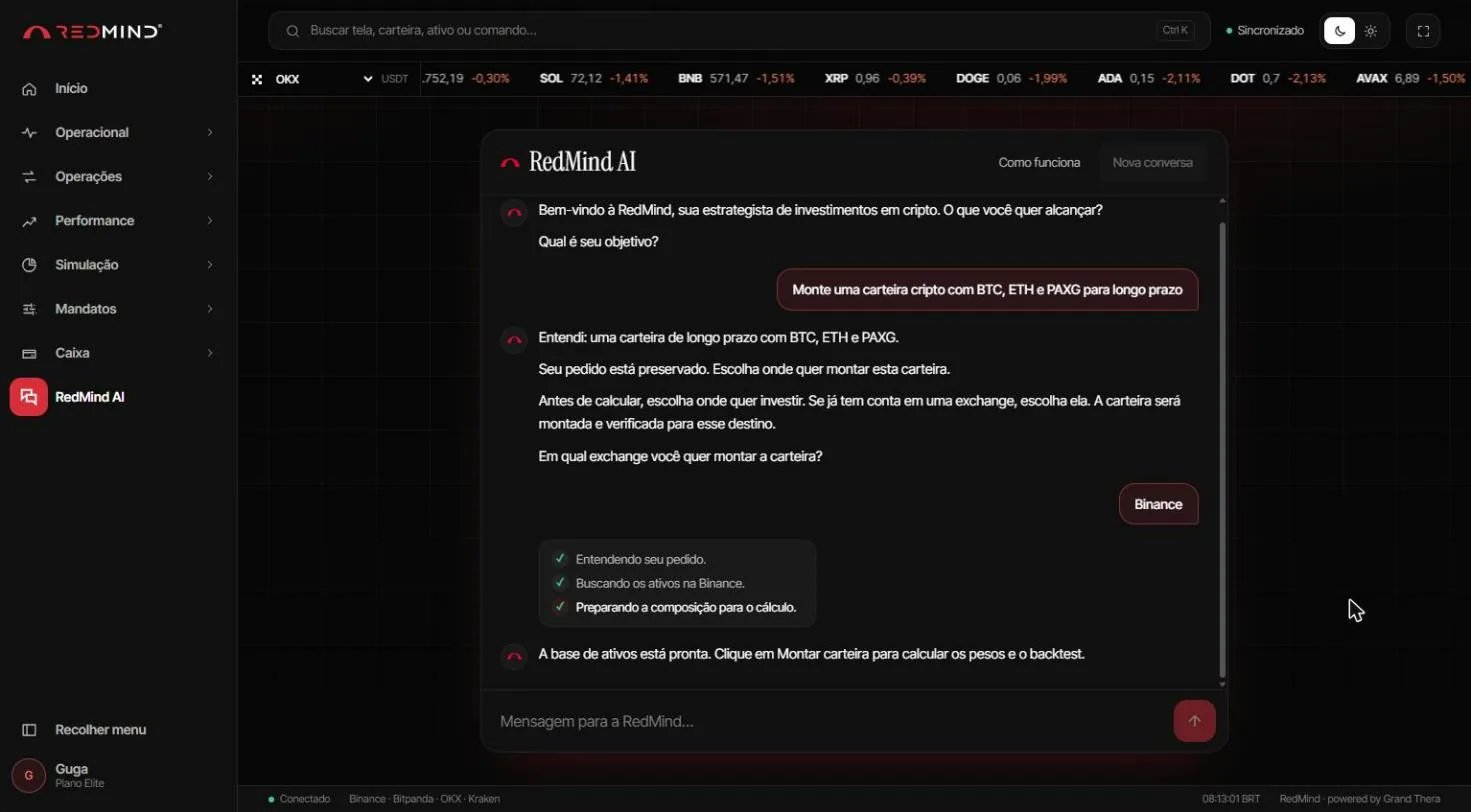
Watch the processing in real time
RedMind AI shows what it is doing:✓ Entendendo seu pedido (Understanding your request) · ✓ Buscando os ativos na exchange (Looking up the assets on the exchange) · ✓ Preparando a composição para o cálculo (Preparing the composition for the calculation).This takes a few seconds. You don’t need to do anything — just wait.
5

Click Montar carteira (Build portfolio)

On the Base sugerida (Suggested base) card, click Montar carteira (Build portfolio).
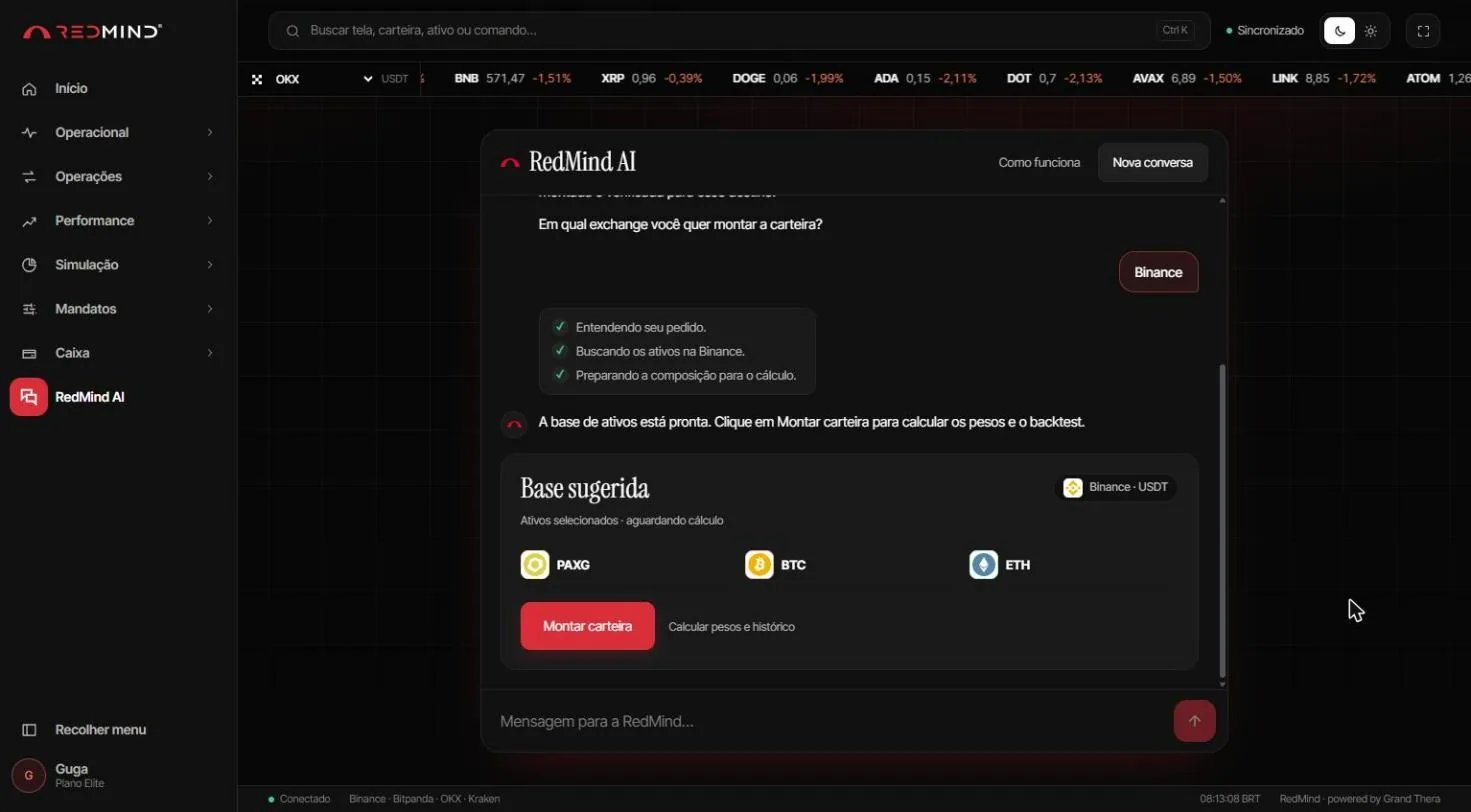
Click Montar carteira (Build portfolio)
The Base sugerida (Suggested base) card shows the chosen assets and the exchange (for example, PAXG, BTC and ETH on Binance · USDT).Click Montar carteira (Build portfolio) to calculate the weights and the backtest.
6

Review the portfolio and click Criar estratégia (Create strategy)

Review the allocation and the historical metrics, then click Criar estratégia (Create strategy).
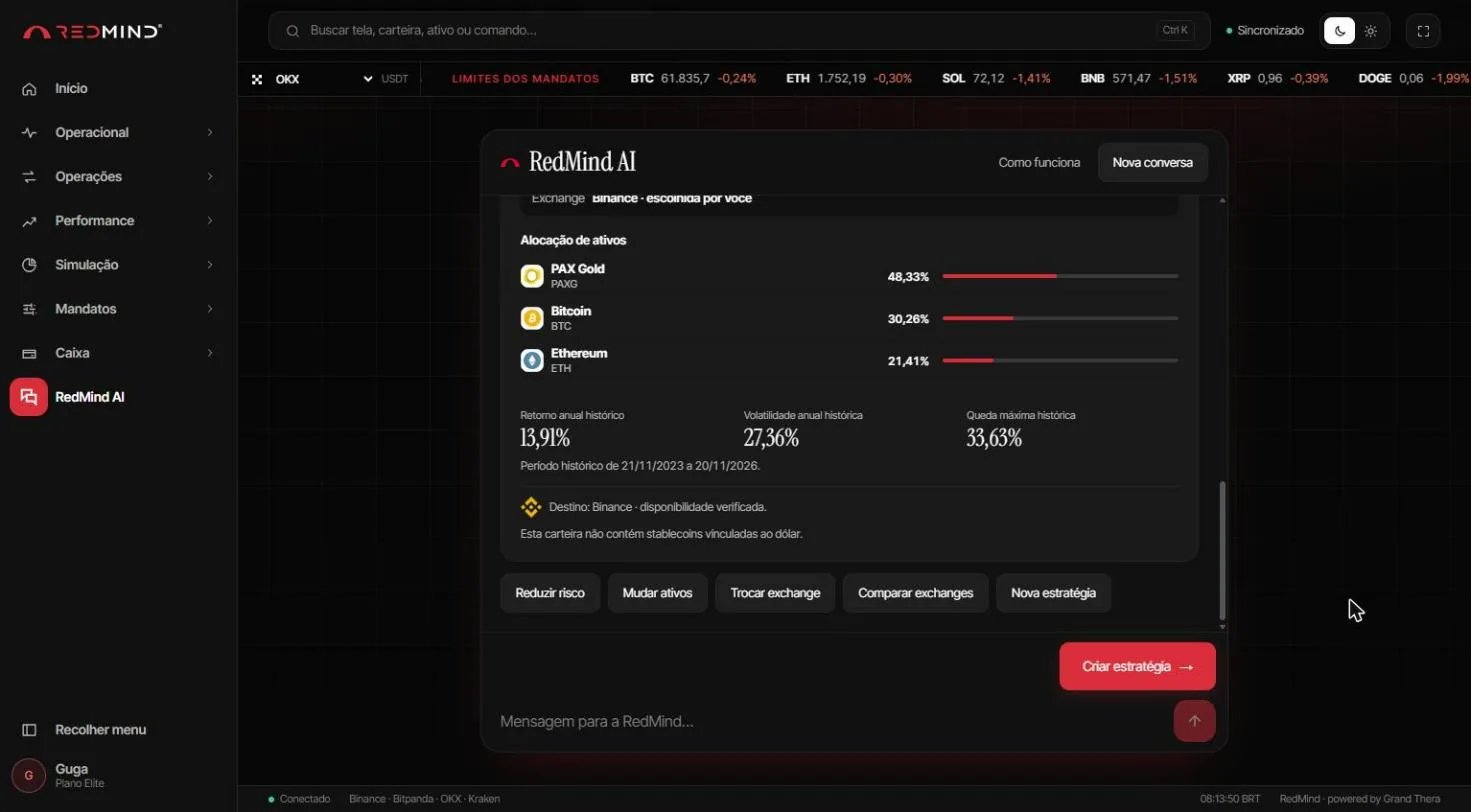
Review the portfolio and click Criar estratégia (Create strategy)
The AI shows the Alocação de ativos (Asset allocation, the weight of each asset) and the historical metrics: Retorno anual histórico (Historical annual return), Volatilidade anual histórica (Historical annual volatility) and Queda máxima histórica (Historical maximum drawdown).To change something, use the buttons below the card: Reduzir risco (Reduce risk), Mudar ativos (Change assets), Trocar exchange (Switch exchange), Comparar exchanges (Compare exchanges) or Nova estratégia (New strategy).If it looks good, click Criar estratégia (Create strategy).
7

Stage 1 · Review the portfolio and save

To adjust, click Refinar com a RedMind AI (Refine with RedMind AI). If it is fine, click Salvar e continuar (Save and continue).
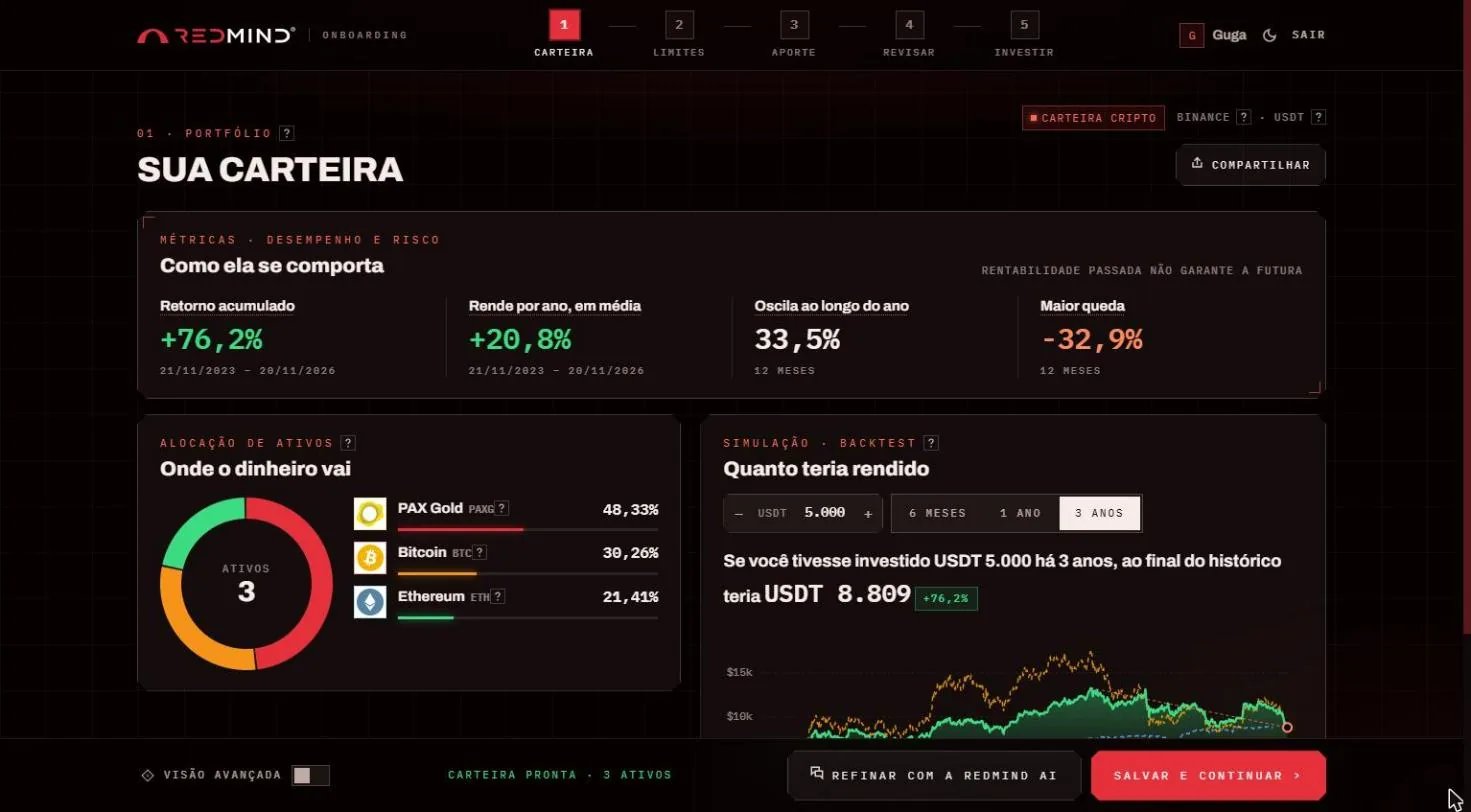
Stage 1 · Review the portfolio and save
You enter the 5-stage wizard (Carteira → Limites → Aporte → Revisar → Investir, meaning Portfolio → Limits → Contribution → Review → Invest). Stage 1 (Sua carteira, Your portfolio) shows:Como ela se comporta (How it behaves): cumulative return, average yearly return, yearly volatility and largest drawdown.Onde o dinheiro vai (Where the money goes): the weight of each asset.Quanto teria rendido (What it would have earned): a 6-month, 1-year or 3-year simulation (backtest).To adjust it, click Refinar com a RedMind AI (Refine with RedMind AI). If it looks good, click Salvar e continuar (Save and continue).
8

Stage 2 · Set the mandate and the limits

Adjust the limits with the sliders and click Salvar mandato e limites (Save mandate and limits).
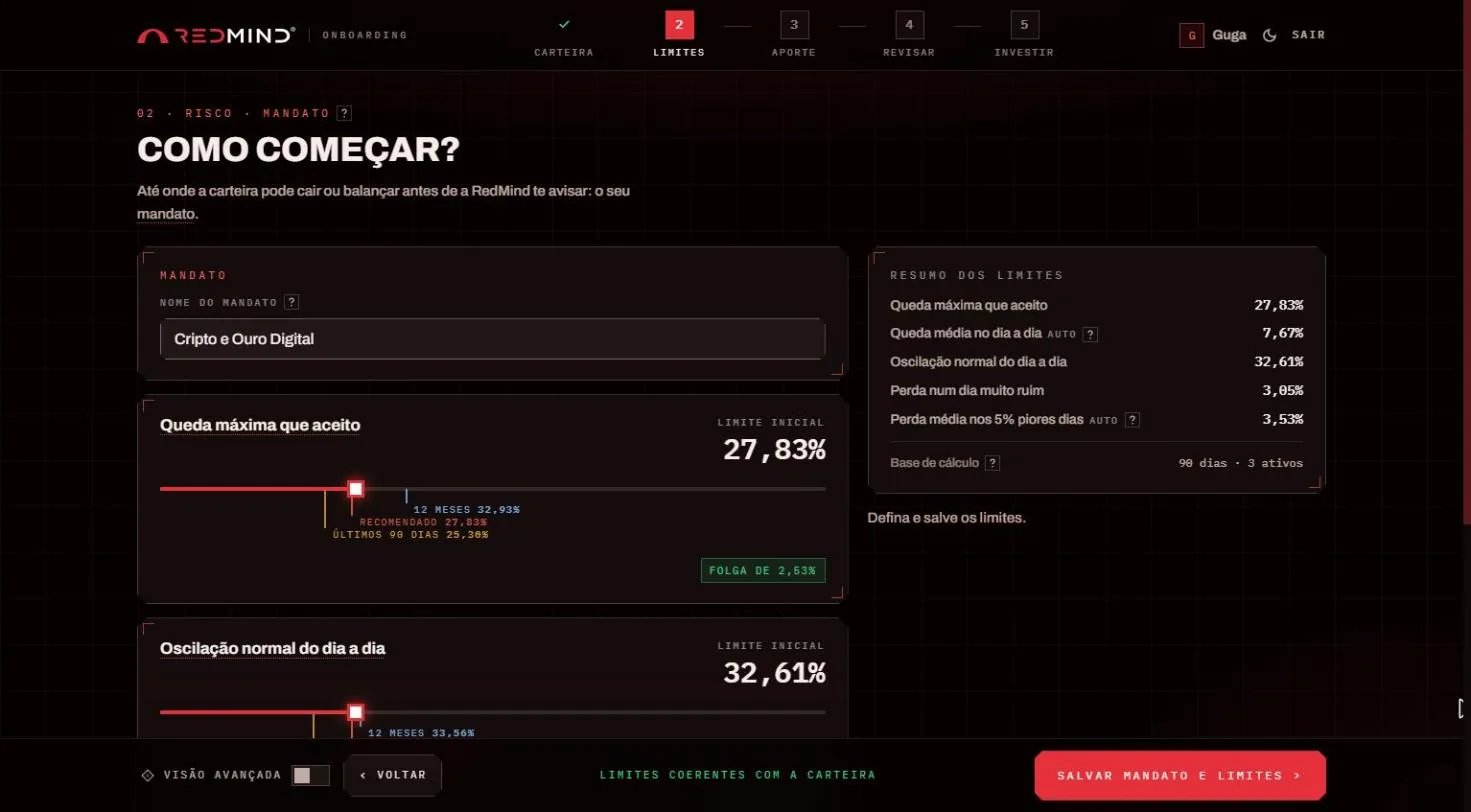
Stage 2 · Set the mandate and the limits
Stage 2 (Como começar?, How to start?) sets your mandate: how far the portfolio can fall or swing before RedMind warns you.Check the Nome do mandato (Mandate name), for example Cripto e Ouro Digital. Then adjust the limits with the sliders: Queda máxima que aceito (Maximum drawdown I accept), Oscilação normal do dia a dia (Normal day-to-day volatility) and Perda num dia muito ruim (Loss on a very bad day). Each slider shows the recommended value, the last 90 days and the last 12 months.Click Salvar mandato e limites (Save mandate and limits).
Mandate limits: These limits are the core of RedMind’s risk control. When the portfolio gets close to a limit, RedMind warns you so you can review it.
9

Stage 3 · Choose the contribution amount and validate

Choose a contribution amount, for example USDT 100, and click Validar (Validate).
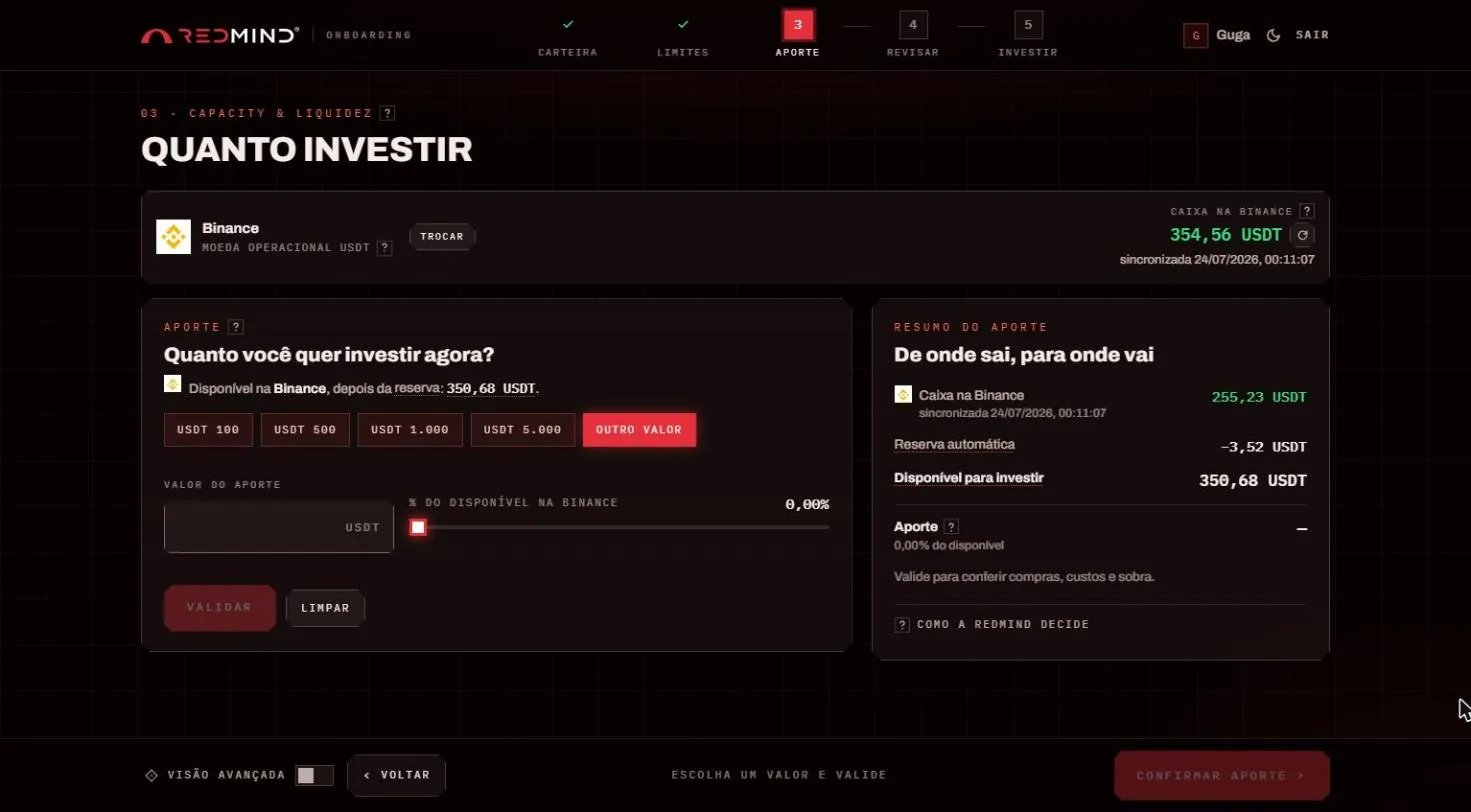
Stage 3 · Choose the contribution amount and validate
Stage 3 (Quanto investir, How much to invest) shows the cash on the exchange and the amount Disponível para investir (Available to invest), after the automatic reserve.Pick an amount (USDT 100, USDT 500…) or click Outro valor (Other amount) and type the amount or use the % slider.Click Validar (Validate).
Exchange not connected?: If the exchange is not connected yet, the stage shows Aguardando (Waiting). Click Ver passo a passo (See step by step) and connect your account before you continue.
10

Stage 3 · Confirm the approved contribution

Check the Aporte aprovado (Approved contribution) result and click Confirmar aporte (Confirm contribution).
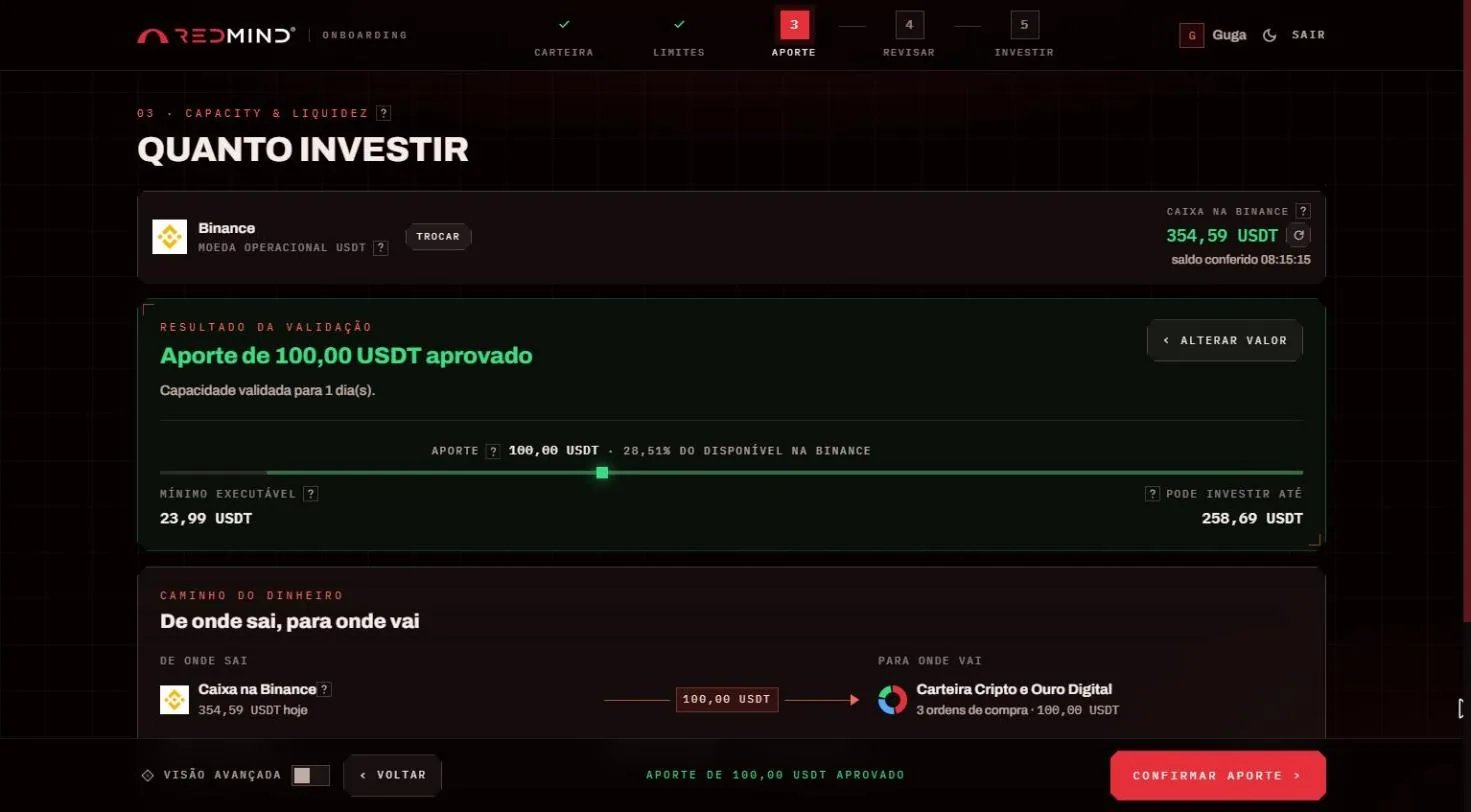
Stage 3 · Confirm the approved contribution
The Resultado da validação (Validation result) panel shows Aporte aprovado (Contribution approved), the Mínimo executável (Minimum executable amount) and how much you Pode investir (Can invest).Under De onde sai, para onde vai (Where it comes from, where it goes) you see the path of the money: from the cash on the exchange to the portfolio, with the number of buy orders.Click Confirmar aporte (Confirm contribution).
11

Stage 4 · Review the strategy

Review the summary, the Ordens (Orders) list and the Limites do mandato (Mandate limits). Notes and tags are optional.
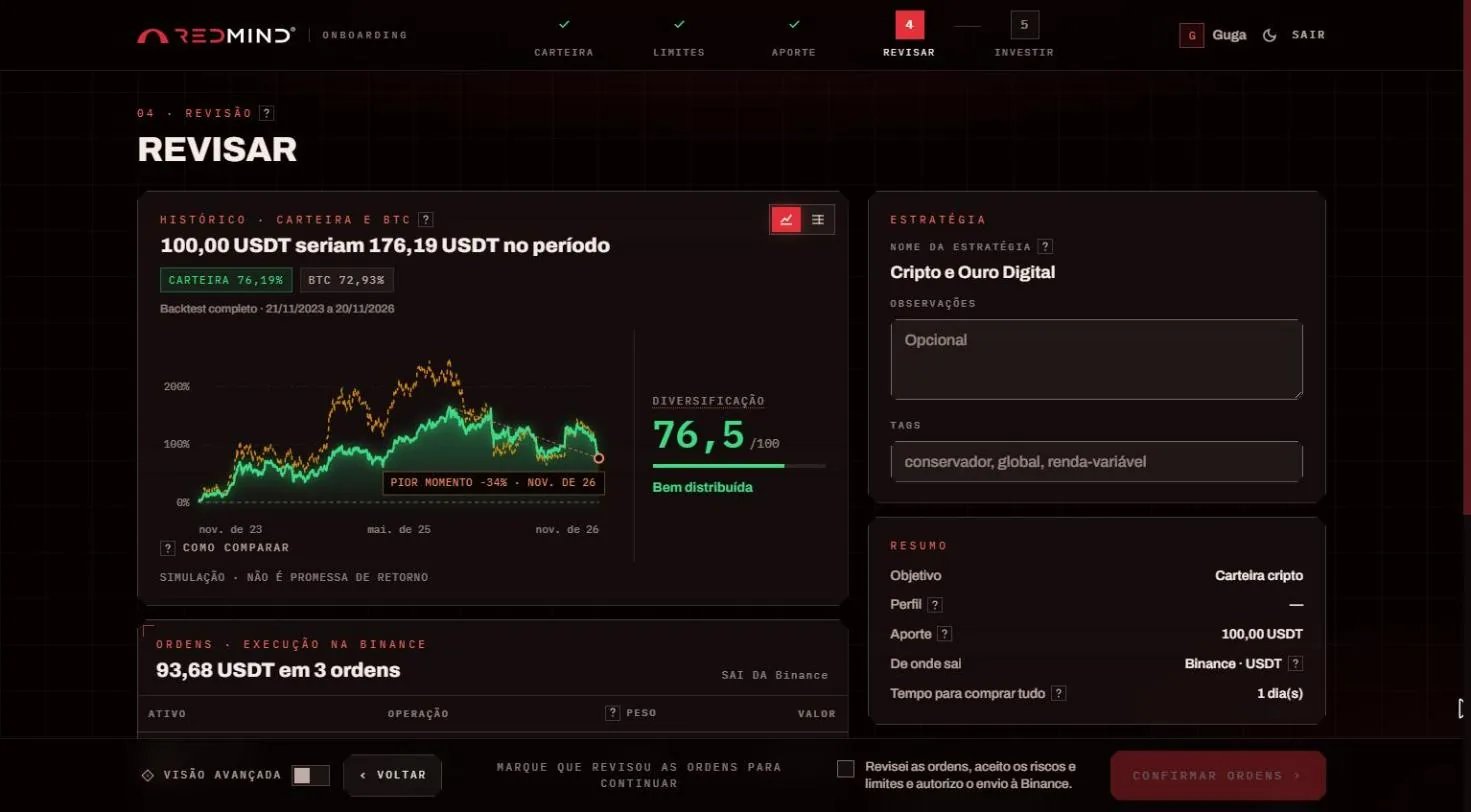
Stage 4 · Review the strategy
Stage 4 (Revisar, Review) shows the final summary: the portfolio history compared with BTC, the Diversificação (Diversification) score, the list of Ordens (Orders: asset, operation, weight and value) and the Limites do mandato (Mandate limits).Add optional Observações (Notes) and Tags to organize your strategies.
12

Stage 4 · Confirm the orders

Tick the authorization box and click Confirmar ordens (Confirm orders). The orders are executed for real.
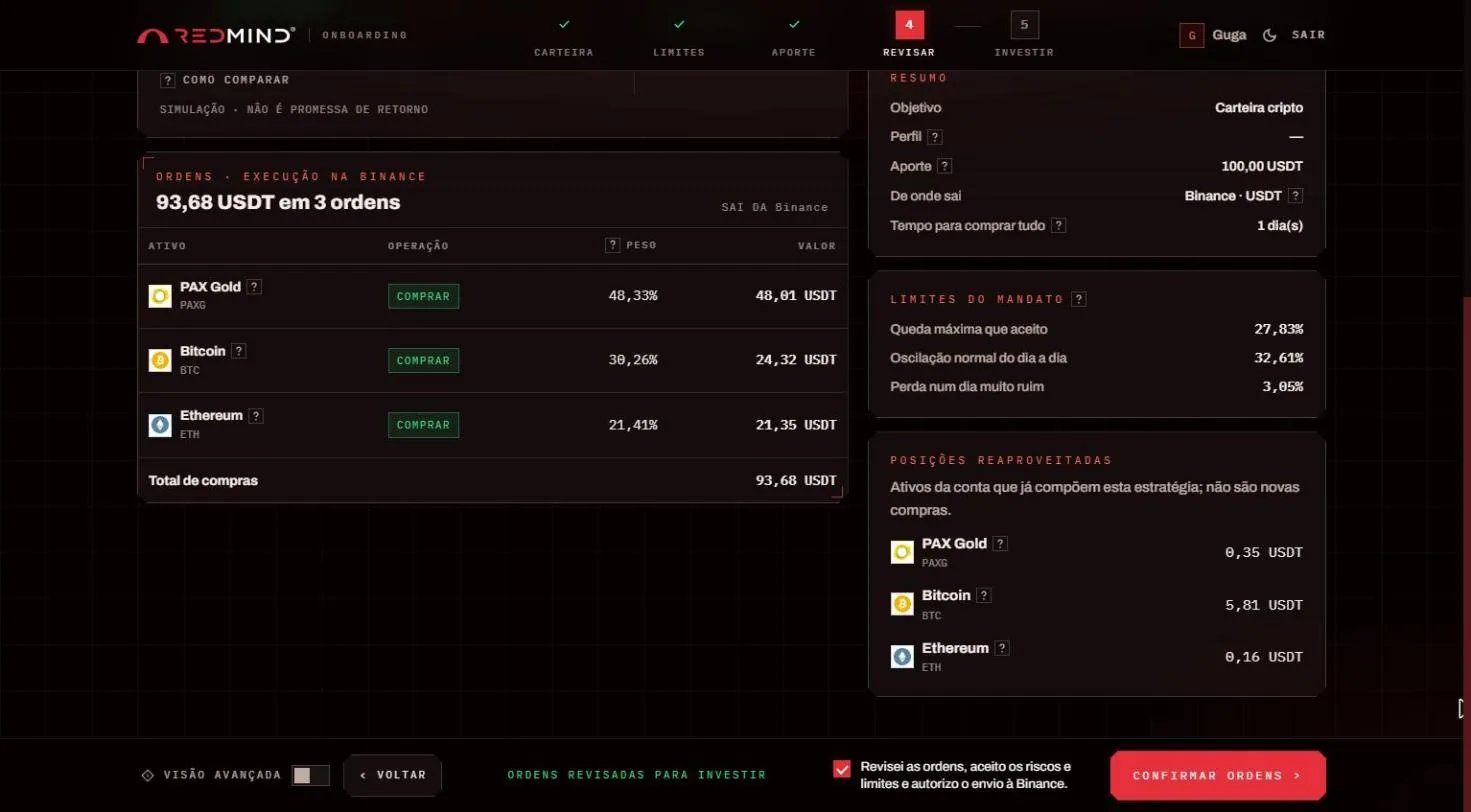
Stage 4 · Confirm the orders
Scroll to the end and check the orders. If your account already holds one of the assets, it appears under Posições reaproveitadas (Reused positions) and is not bought again.Tick the box Revisei as ordens, aceito os riscos e limites e autorizo o envio à Binance (I reviewed the orders, accept the risks and limits and authorize sending them to Binance) and click Confirmar ordens (Confirm orders). The orders go to the exchange and Stage 5 (Investir, Invest) shows the execution progress.
Final check: From this point on, the orders are sent to the exchange and executed for real. Review everything before you confirm.
13

Go back to Início (Home) to see your consolidated net worth

Click Início (Home) in the sidebar and check the Patrimônio total (Total net worth). Nothing else is needed.
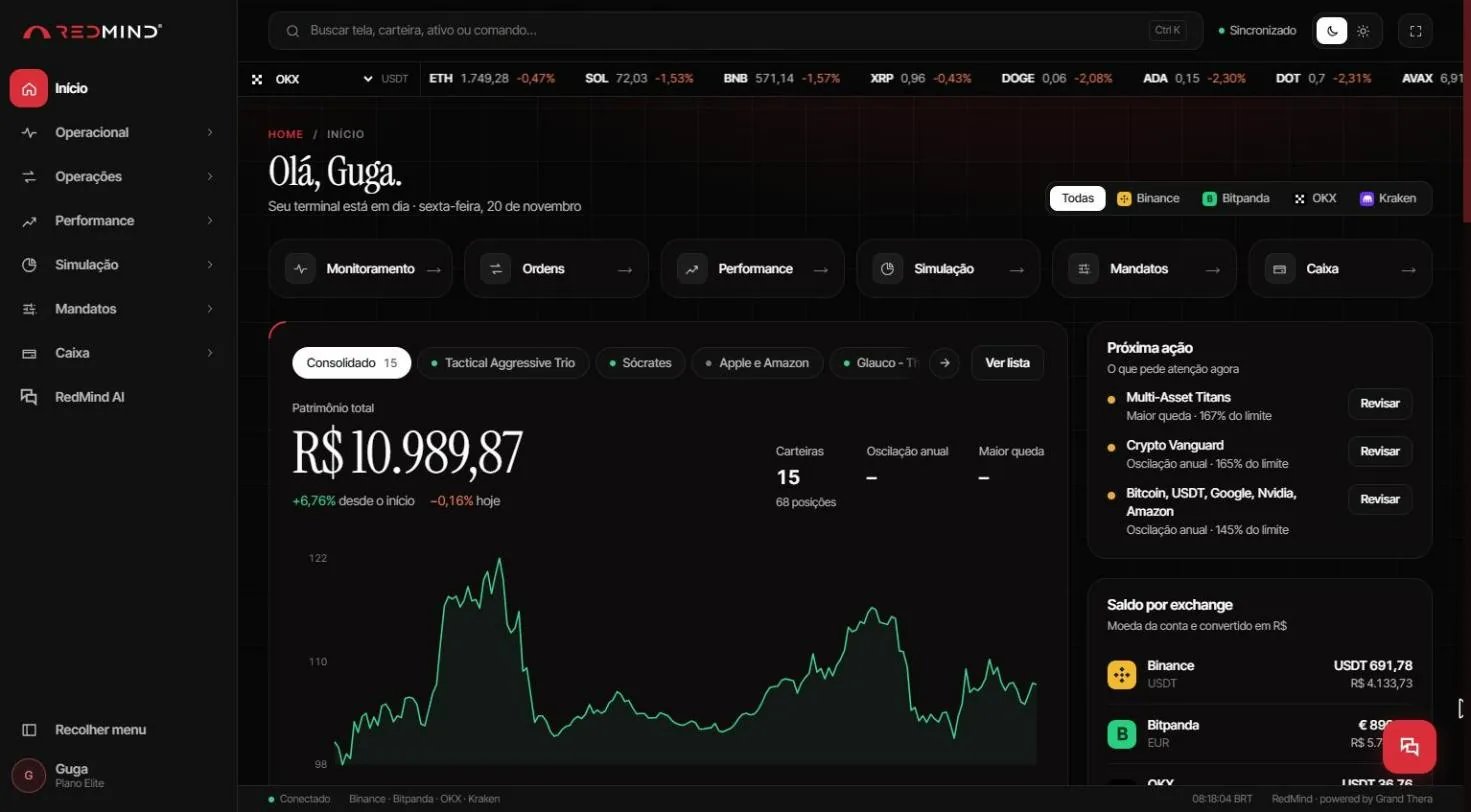
Go back to Início (Home) to see your consolidated net worth
Click Início (Home) in the sidebar. You see the consolidated dashboard:Patrimônio total (Total net worth) of all portfolios, with the change since inception and today.Próxima ação (Next action): portfolios that need attention (for example, a mandate limit that was exceeded), with a Revisar (Review) button.Saldo por exchange (Balance by exchange): each exchange’s balance in the account currency and converted to BRL.
14

Track your portfolios in Monitoramento (Monitoring)

Open Operacional → Monitoramento (Operational → Monitoring) and click Detalhes (Details) on the portfolio you want to follow.
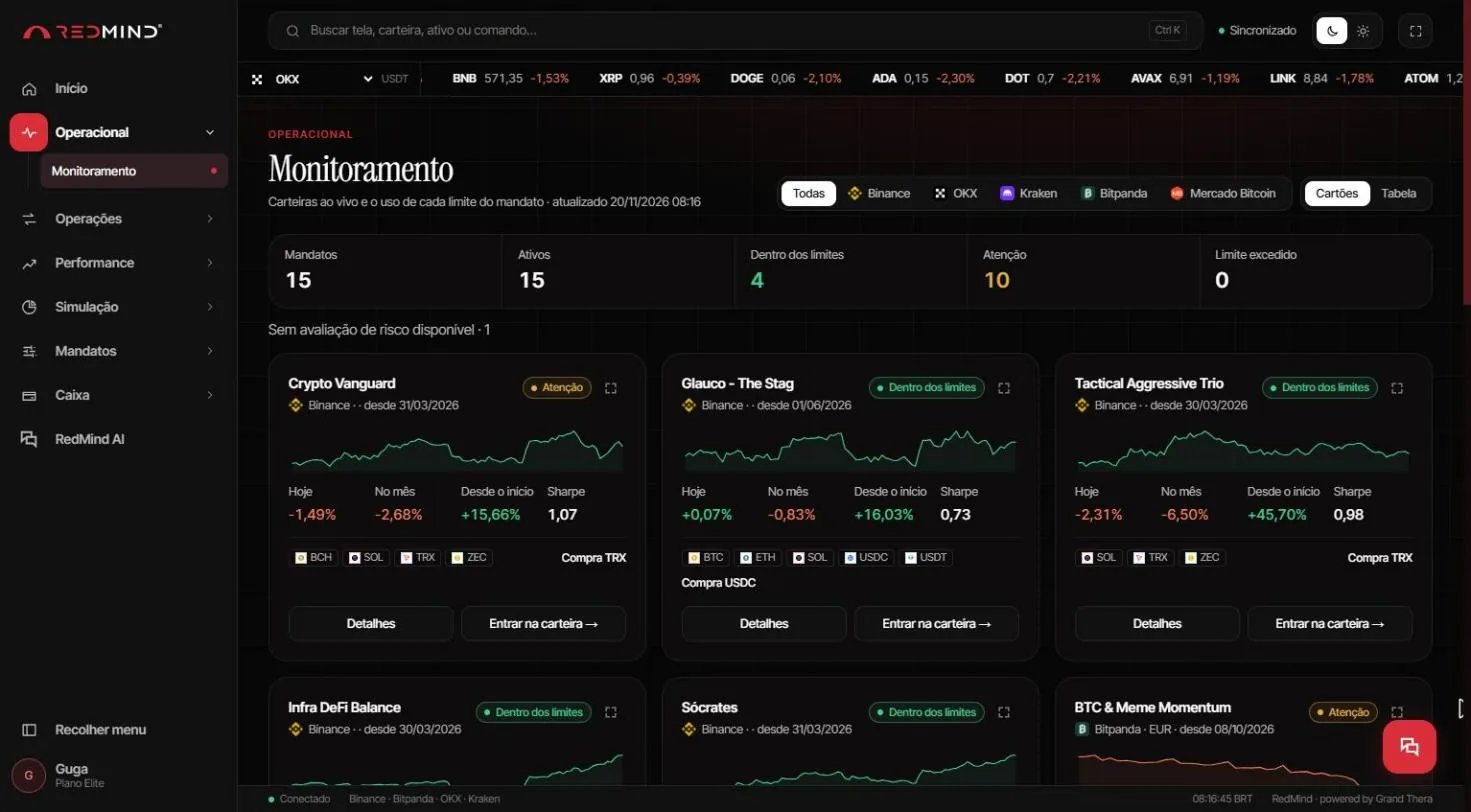
Track your portfolios in Monitoramento (Monitoring)
Go to Operacional → Monitoramento (Operational → Monitoring). Each portfolio has a card with the mandate status (Dentro dos limites, Within limits; Atenção, Attention; or Limite excedido, Limit exceeded), the return for today, this month and since inception, and the Sharpe ratio.Click Detalhes (Details) or Entrar na carteira (Open portfolio) to see more.
15

Open Risco e Desempenho (Risk and Performance) to track your portfolio

Open Performance → Risco e Desempenho (Risk and Performance) and pick the portfolio under Mandato em análise (Mandate under review).
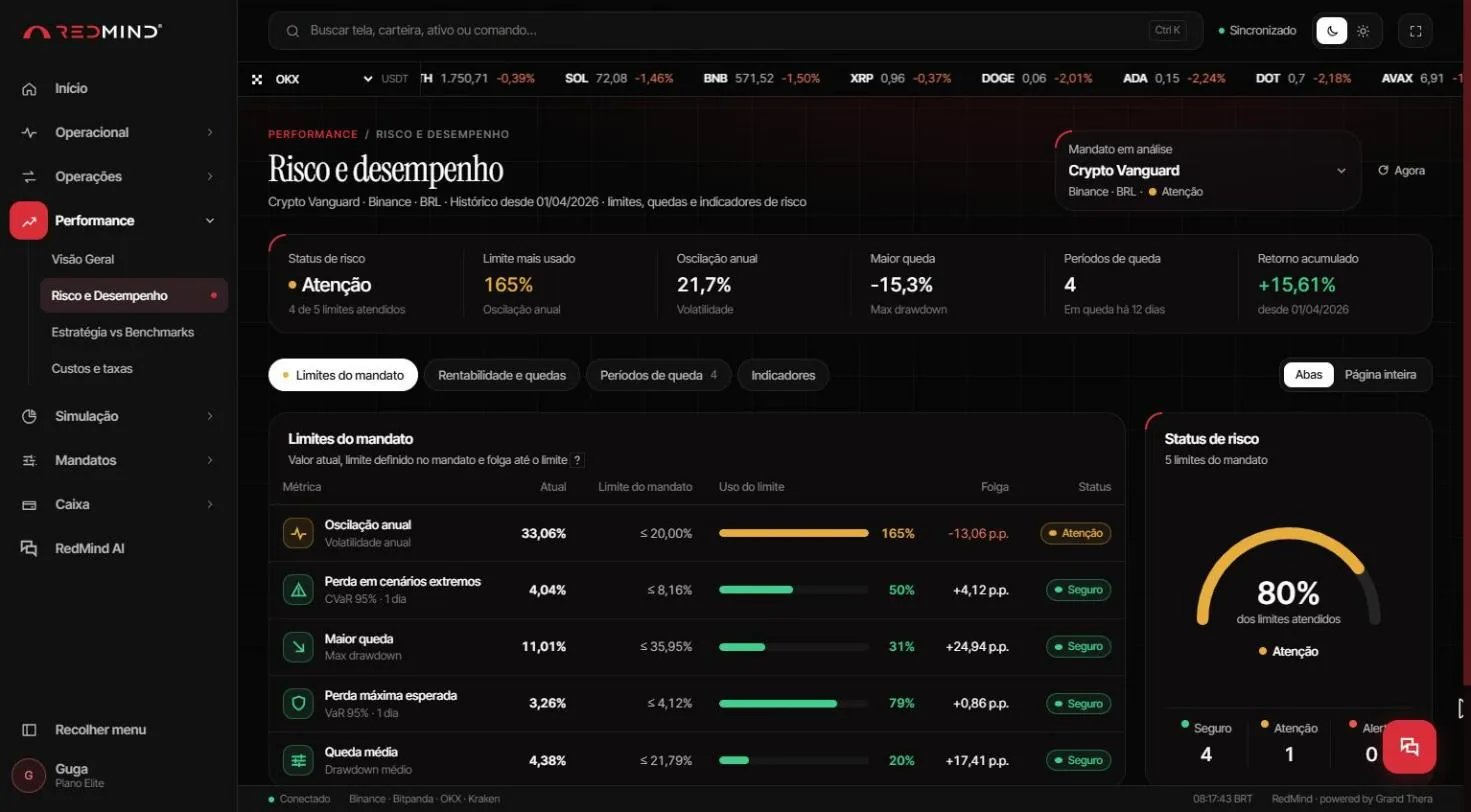
Open Risco e Desempenho (Risk and Performance) to track your portfolio
To track risk in detail, go to Performance → Risco e Desempenho (Risk and Performance) and pick the portfolio under Mandato em análise (Mandate under analysis). You see:Status de risco (Risk status) · Limite mais usado (Most-used limit) · Oscilação anual (Annual volatility) · Maior queda (Largest drawdown) · Retorno acumulado (Cumulative return), and the Limites do mandato (Mandate limits) table (current value, limit, limit usage, headroom and status Seguro/Atenção/Alerta, meaning Safe/Attention/Alert).The Rentabilidade e quedas (Returns and drawdowns), Períodos de queda (Drawdown periods) and Indicadores (Indicators) tabs hold the full history.
Congratulations: You just set up your first RedMind strategy — from sign-up to a live portfolio. Welcome to Money 3.0.

Next steps

Track your portfolios

See your net worth, the mandate status and the risk of each portfolio.

Common questions

Find short answers about accounts, exchanges and portfolios.