

This guide shows the 9 steps of the RedMind tutorial “Create a RedMind account”. Each step has a screenshot, the action and the details. Select a screenshot to zoom.
The RedMind Terminal and most exchange screens are in Portuguese. This guide gives each label as it shows on the screen, with the translation in parentheses.
1

Go to redmind.global and open Planos (Plans)

Open redmind.global and click Planos (Plans) in the top menu.
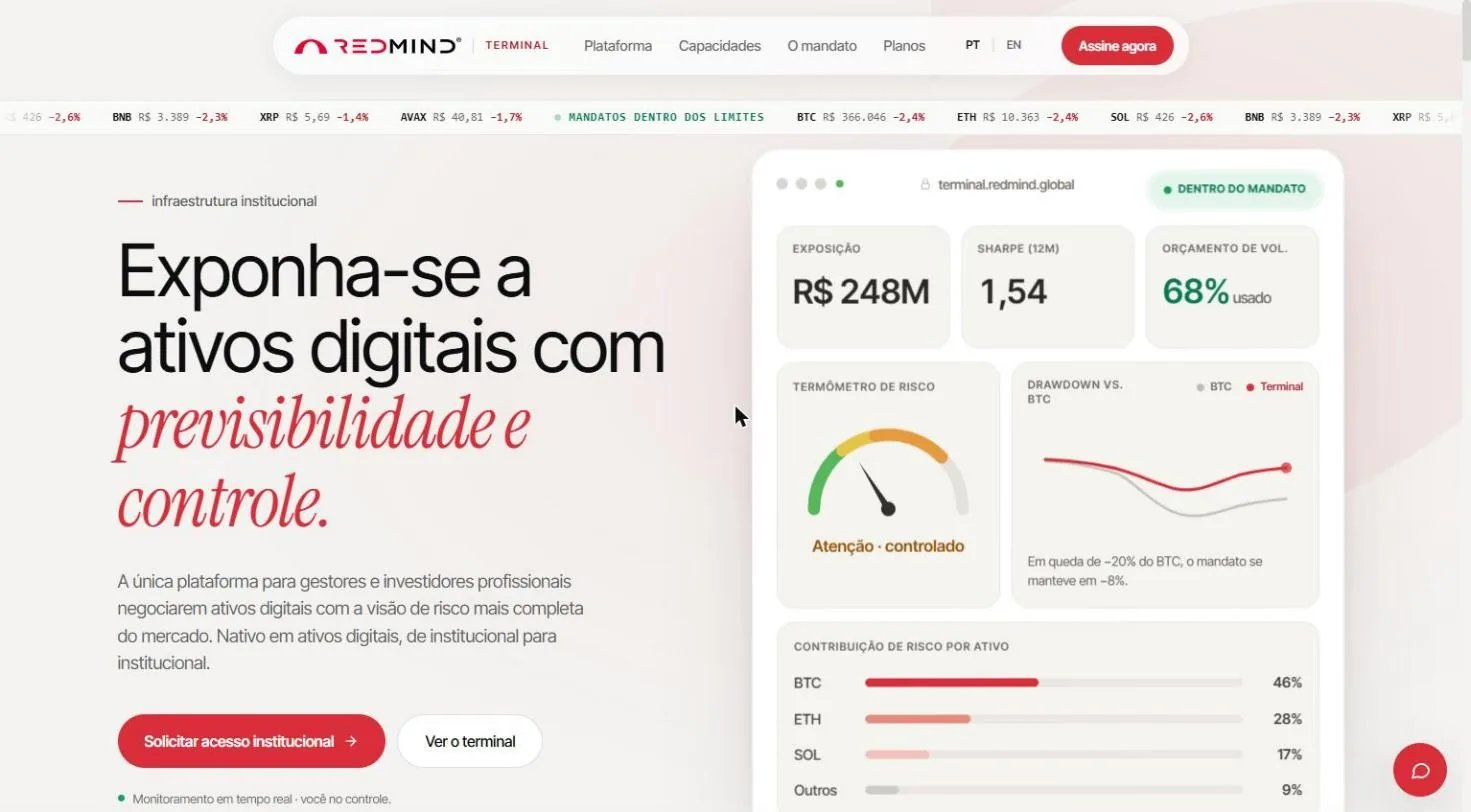
Go to redmind.global and open Planos (Plans)
Open redmind.global in your browser. In the top menu, click Planos (Plans).The Comece sóbrio. Escale com o mandato. (Start sober. Scale with the mandate.) section shows the Pro, Elite and Institucional (Institutional) plans.
2

Click Escolher Elite (Choose Elite)

On the Elite card, click Escolher Elite (Choose Elite).
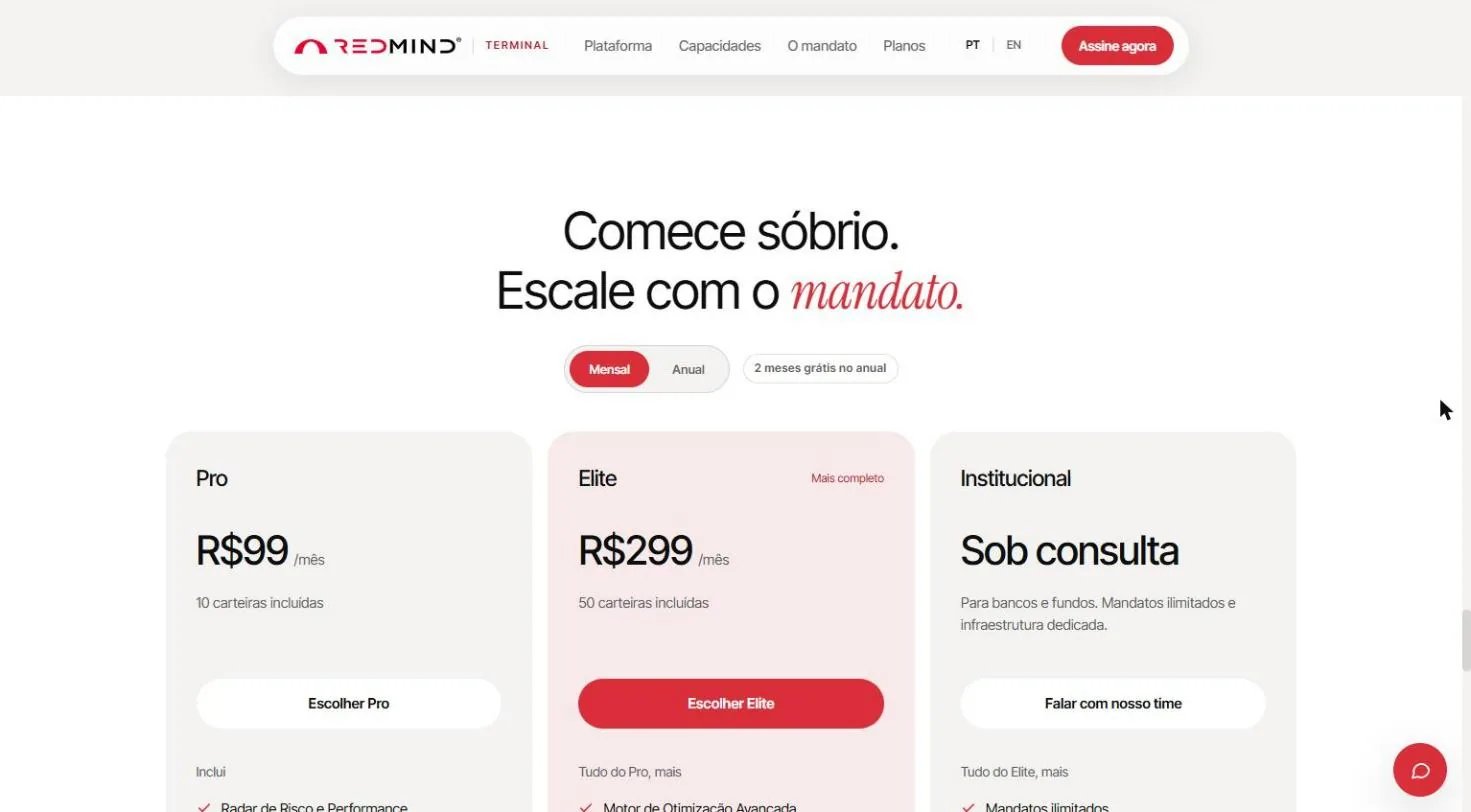
Click Escolher Elite (Choose Elite)
On the Elite card (R$ 299/month, 50 portfolios included), click Escolher Elite (Choose Elite).Elite includes everything in Pro, plus the Execution Cockpit, Correlation and Diversification Map, Advanced Optimization Engine, Portfolio Optimizer, Advanced Parameterization and Risk and Performance.
Don’t worry about the price: Later you’ll use a promo code with a 100% discount. The final amount will be R$ 0.
3

Click Criar conta (Create account)

In the Acesse o Terminal card, click the Criar conta (Create account) tab.
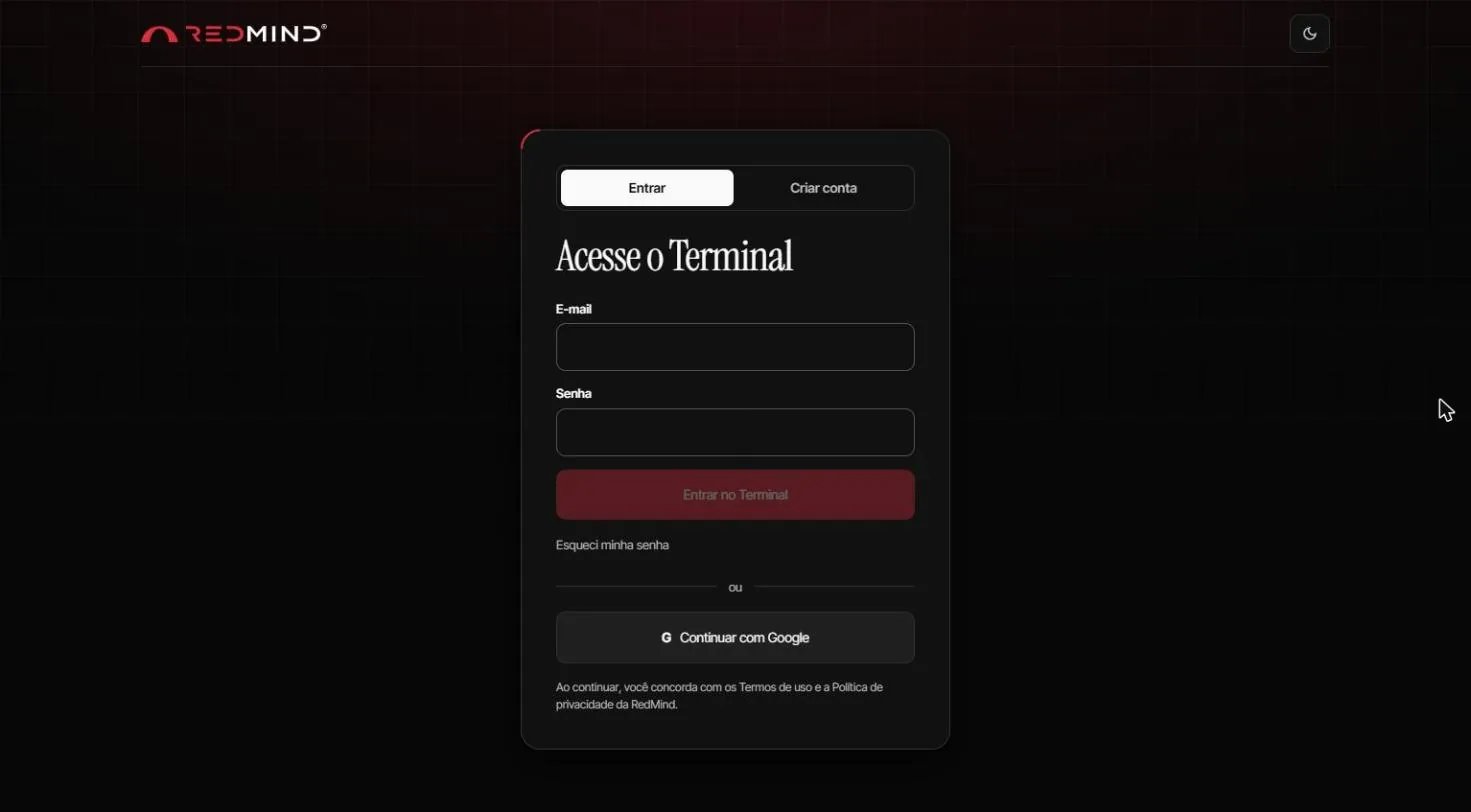
Click Criar conta (Create account)
You land on the RedMind Terminal, on the Acesse o Terminal (Access the Terminal) card. If you don’t have an account yet, click the Criar conta (Create account) tab.If you already have an account, fill in E-mail and Senha (Password) and click Entrar no Terminal (Enter the Terminal). The plan you chose on the website stays selected.
4

Fill in your details and create the account

Fill in name, e-mail and password (at least 8 characters), then click Criar minha conta (Create my account).
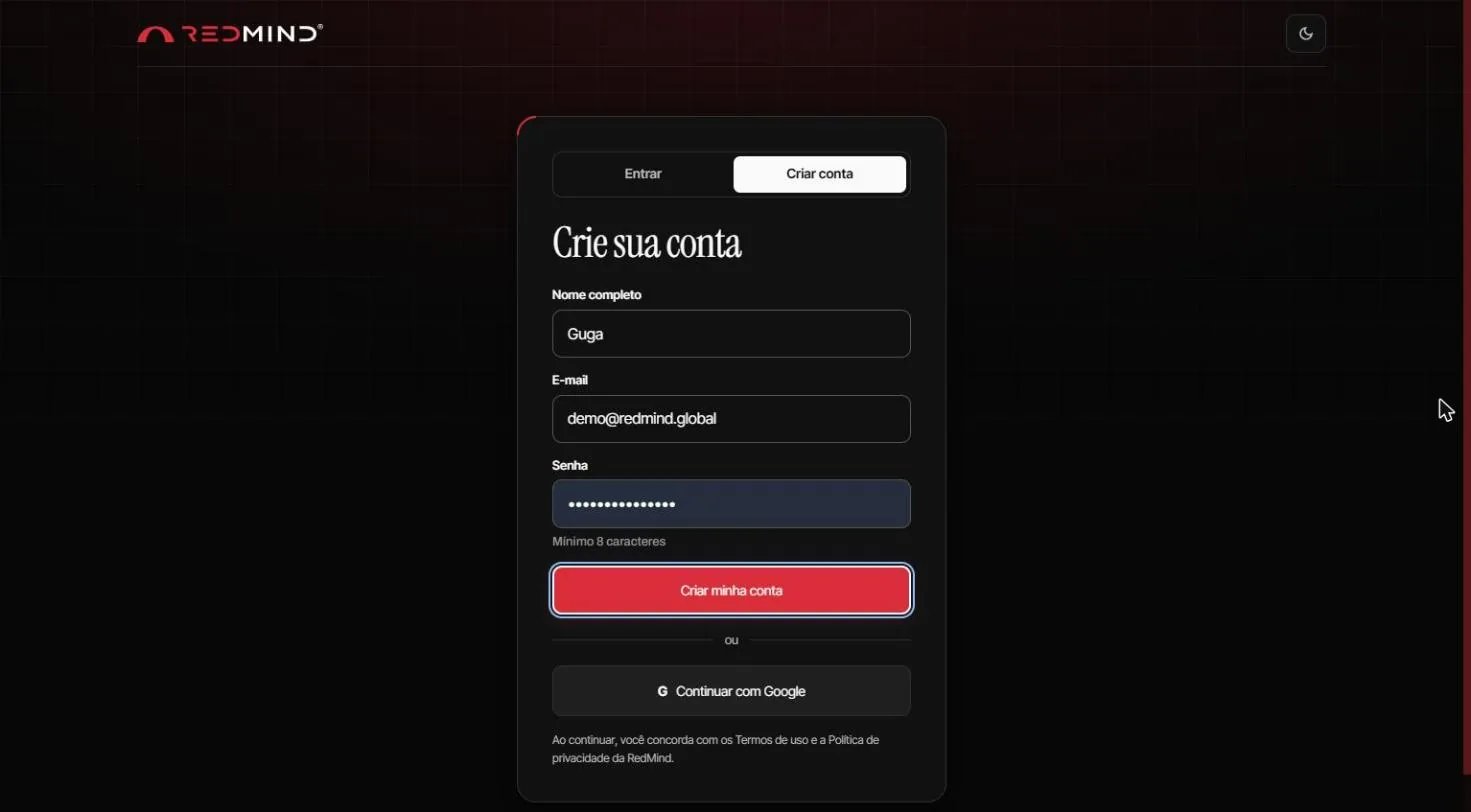
Fill in your details and create the account
Under Crie sua conta (Create your account), fill in Nome completo (Full name), E-mail and Senha (Password, at least 8 characters).Click Criar minha conta (Create my account). You can also use Continuar com Google (Continue with Google).
Security: Use a strong password with at least 12 characters, including uppercase and lowercase letters, numbers, and symbols. Consider a password manager: RedMind will access your exchanges.
5

In Minha assinatura (My subscription), click Assinar Elite (Subscribe to Elite)

On the Minha assinatura (My subscription) screen, click Assinar Elite (Subscribe to Elite) on the Elite card.
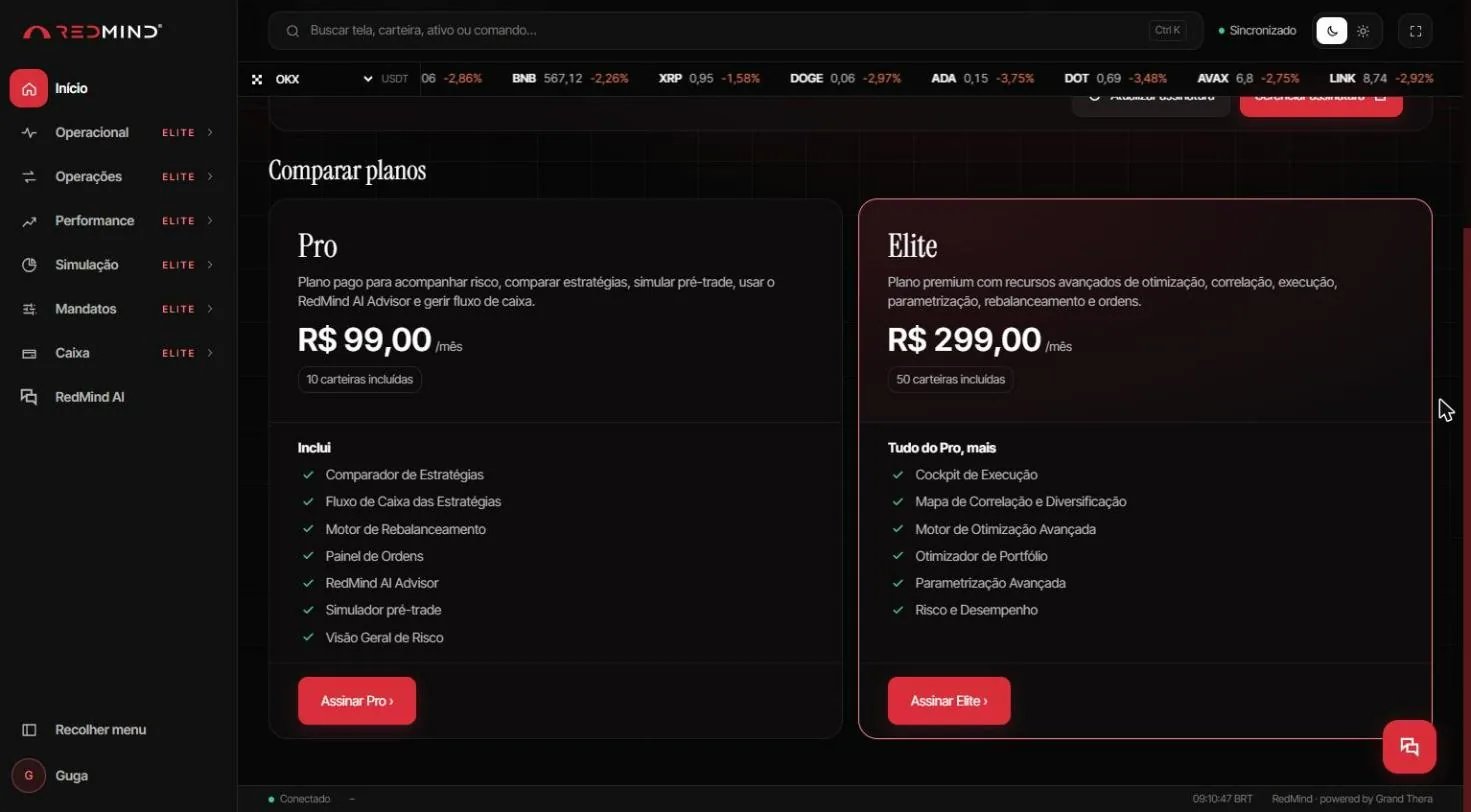
In Minha assinatura (My subscription), click Assinar Elite (Subscribe to Elite)
Your account is created and you go straight to the Minha assinatura (My subscription) screen, still Sem plano ativo (No active plan). If the Atualização da plataforma RedMind (RedMind platform update) notice appears, click Continuar para o Terminal (Continue to the Terminal).Under Comparar planos (Compare plans), the Elite card is highlighted. Click Assinar Elite (Subscribe to Elite).
6

Apply the promo code BETATESTERS100

Enter the promo code in the Código promocional (Promo code) field and click Apply.
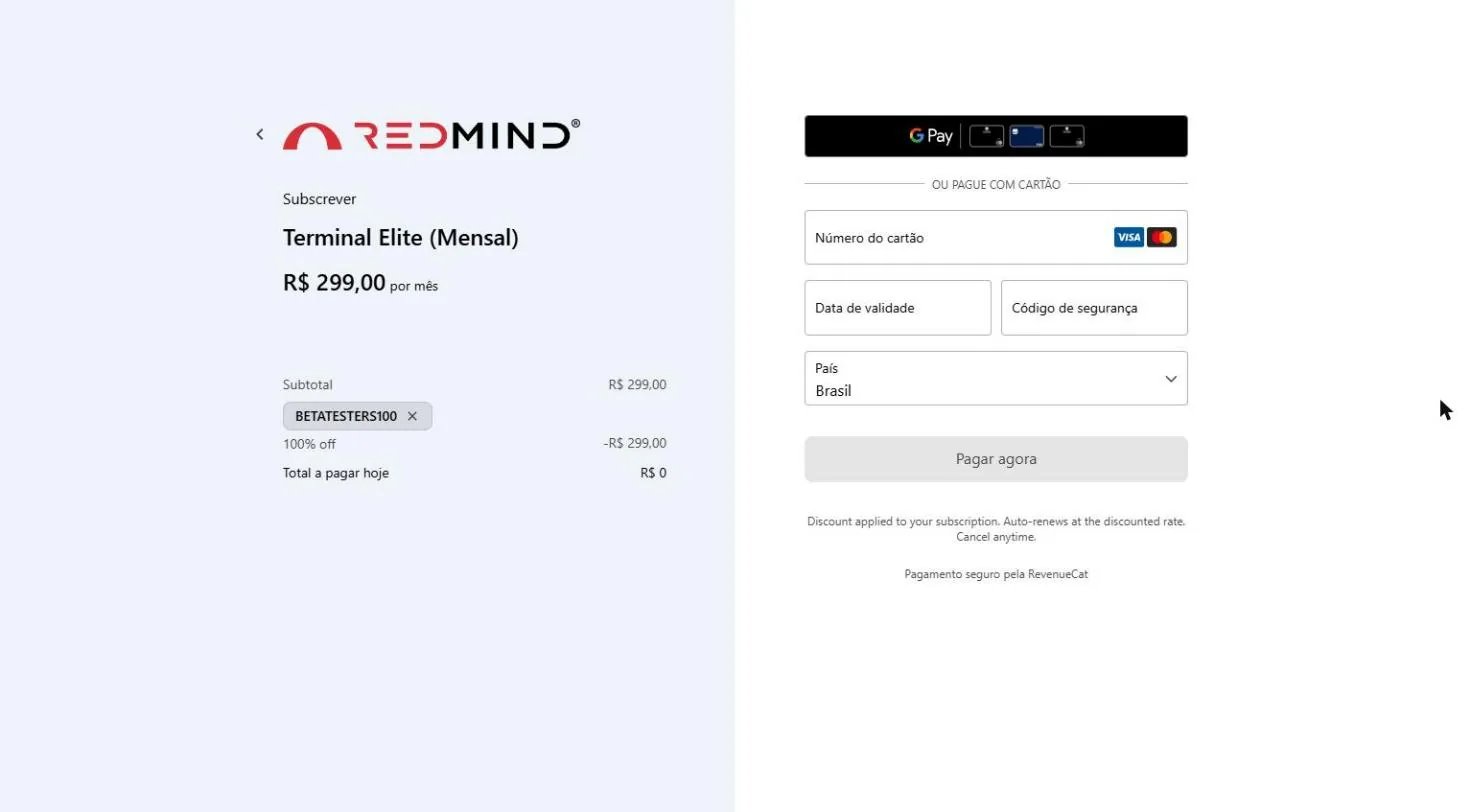
Apply the promo code BETATESTERS100
At the Terminal Elite (Mensal) (Terminal Elite, Monthly) checkout, enter BETATESTERS100 in the Código promocional (Promo code) field and click Apply.The 100% off discount is applied, and Total a pagar hoje (Total due today) drops to R$ 0.
7

Enter your card and click Pagar agora (Pay now)

Fill in the card details and click Pagar agora (Pay now). With the discount, nothing is charged.
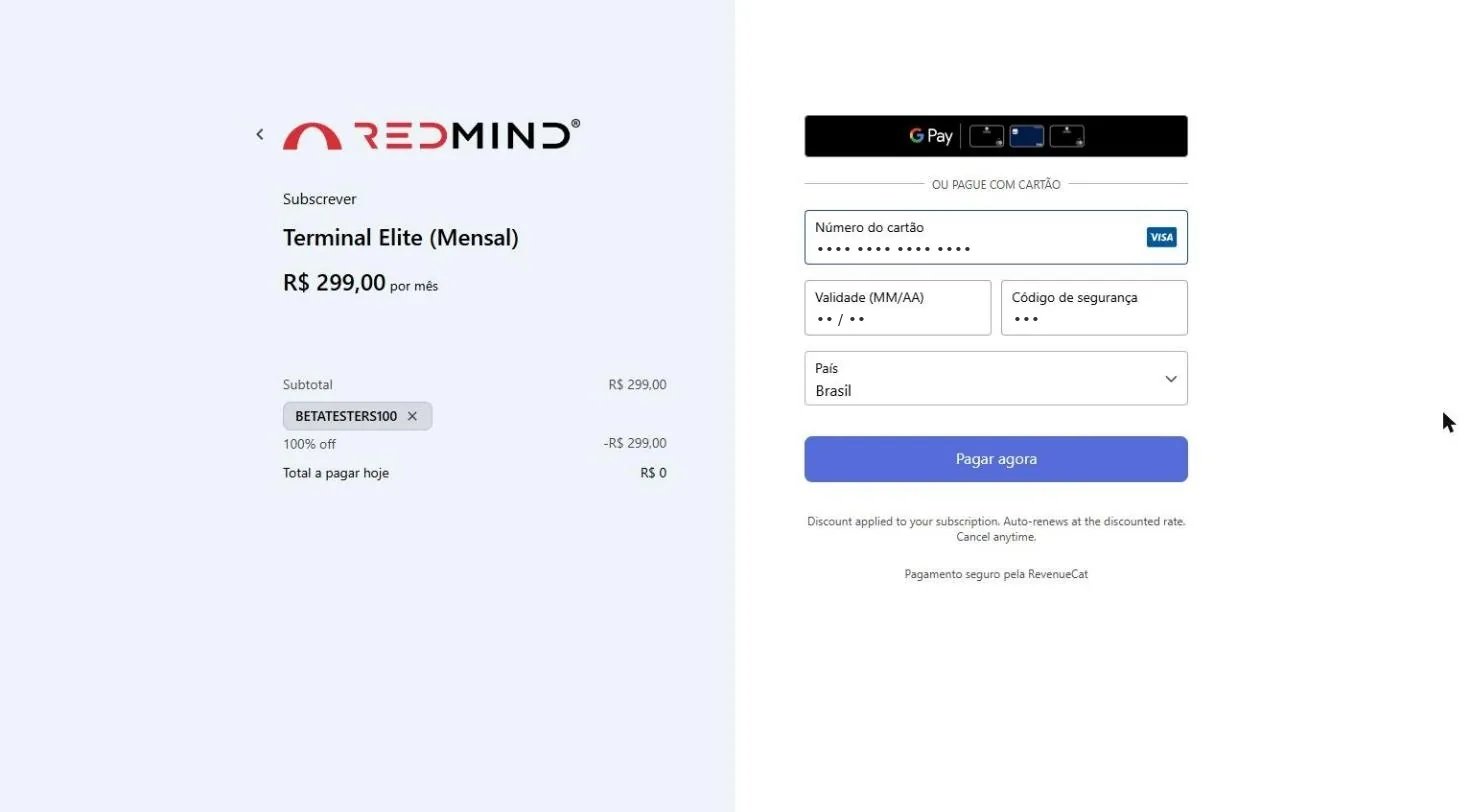
Enter your card and click Pagar agora (Pay now)
Even though the total is zero, you must enter your credit card details: Número do cartão (Card number), Validade (Expiration date), Código de segurança (Security code) and País (Country).Click Pagar agora (Pay now).
Important: about the card: The card is required only to complete the payment gateway process. With BETATESTERS100 applied, the subscription renews at the discounted rate and you won’t be charged anything.
8

Payment complete — click Continuar (Continue)

Click Continuar (Continue) to go back to the Terminal.
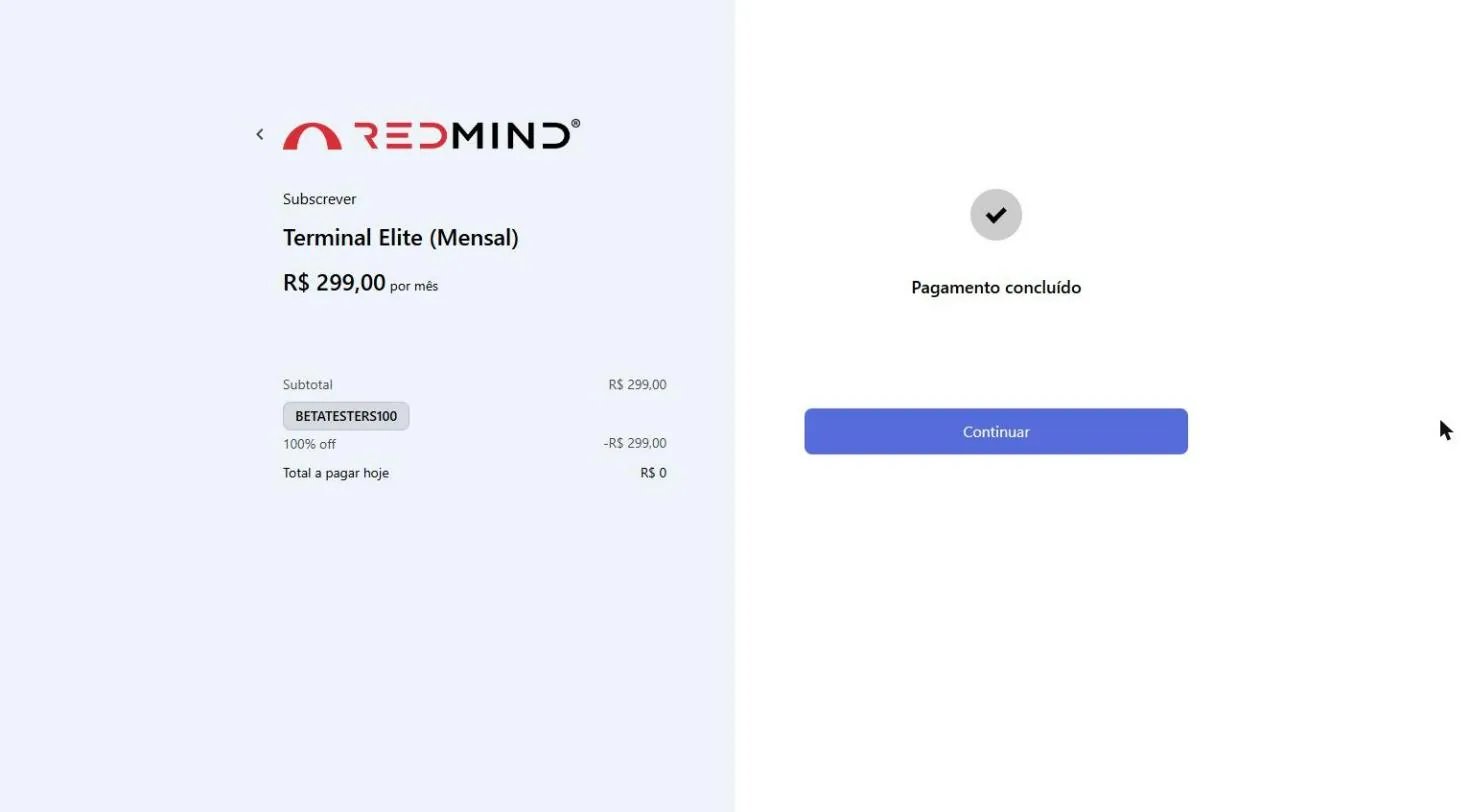
Payment complete — click Continuar (Continue)
You see the Pagamento concluído (Payment complete) confirmation. Click Continuar (Continue) to go back to the Terminal.
9

Check that your Elite plan is active

Check the Assinatura ativa (Active subscription) badge next to the Elite plan. You do not need to click.
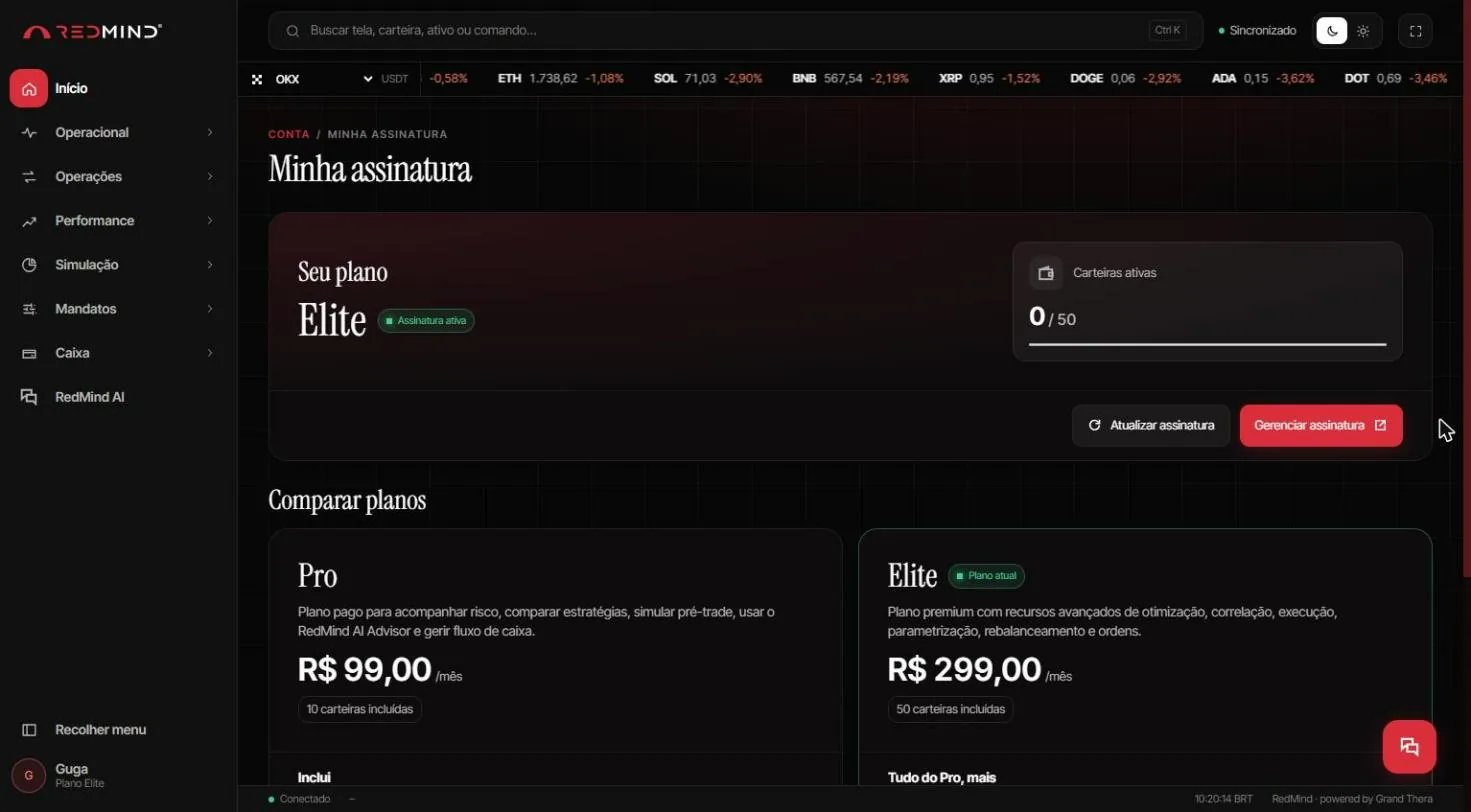
Check that your Elite plan is active
In Minha assinatura (My subscription), Seu plano (Your plan) shows Elite with the Assinatura ativa (Active subscription) badge. The sidebar menus are unlocked.If the plan doesn’t show up, click Atualizar assinatura (Refresh subscription).Next step: connect your first exchange to start trading.

Next steps

Connect an exchange

Learn the API key rules, then connect OKX, Binance or Kraken.

Common questions

Find short answers about accounts, exchanges and portfolios.