

The RedMind Terminal and most exchange screens are in Portuguese. This guide gives each label as it shows on the screen, with the translation in parentheses.
1
In RedMind, open Contas e acessos (Accounts and access) and choose Binance
In Contas e acessos (Accounts and access), click Conectar exchange (Connect exchange) and choose Binance.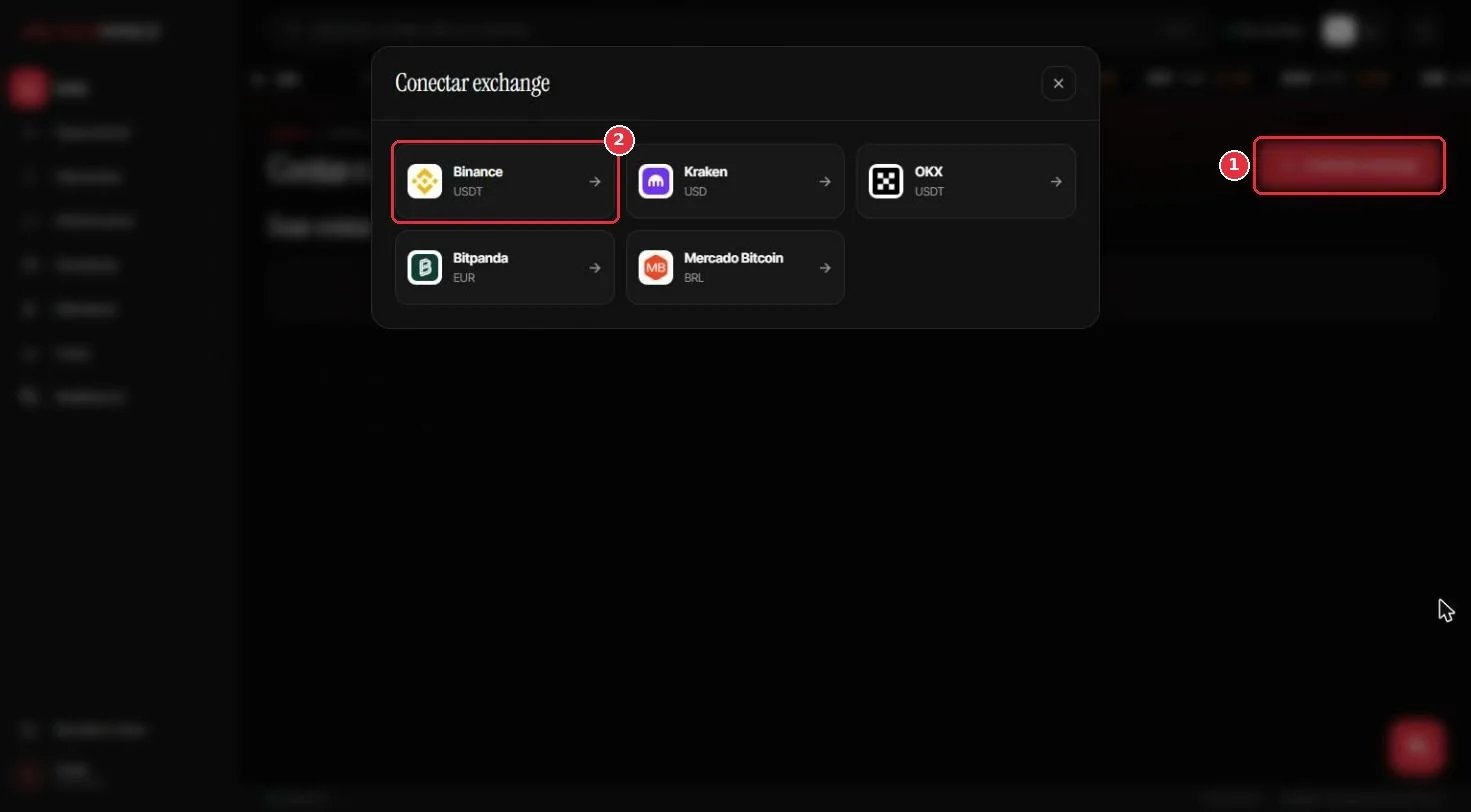
2
Log in to Binance
Open binance.com on a computer and log in to your account.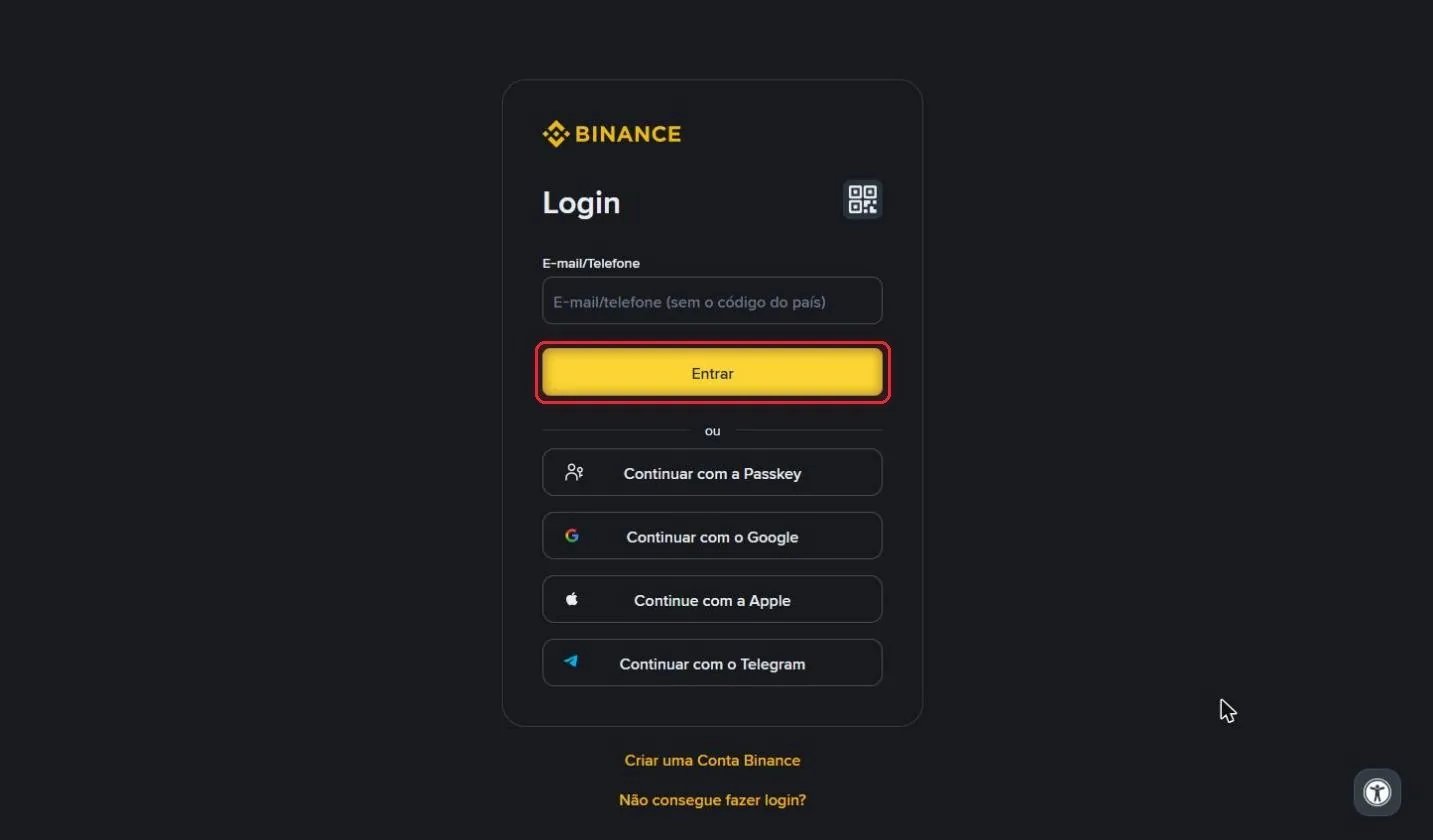
3
Open API Management
In the left menu, click Conta (Account), then Gerenciamento de API (API Management).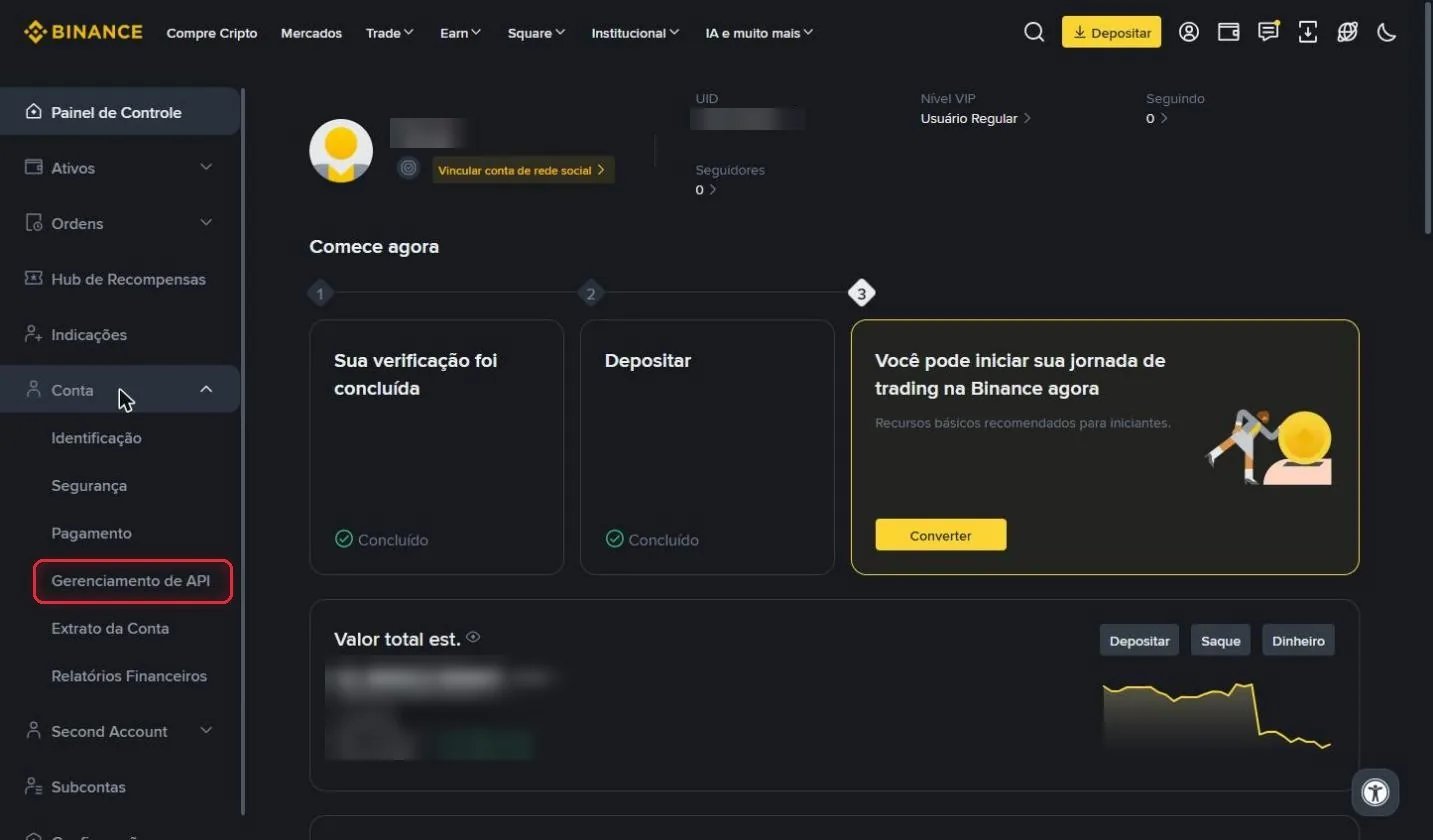
4
Uncheck the Default Security Controls
Uncheck the Default Security Controls box. Without this, Binance blocks trading on the key.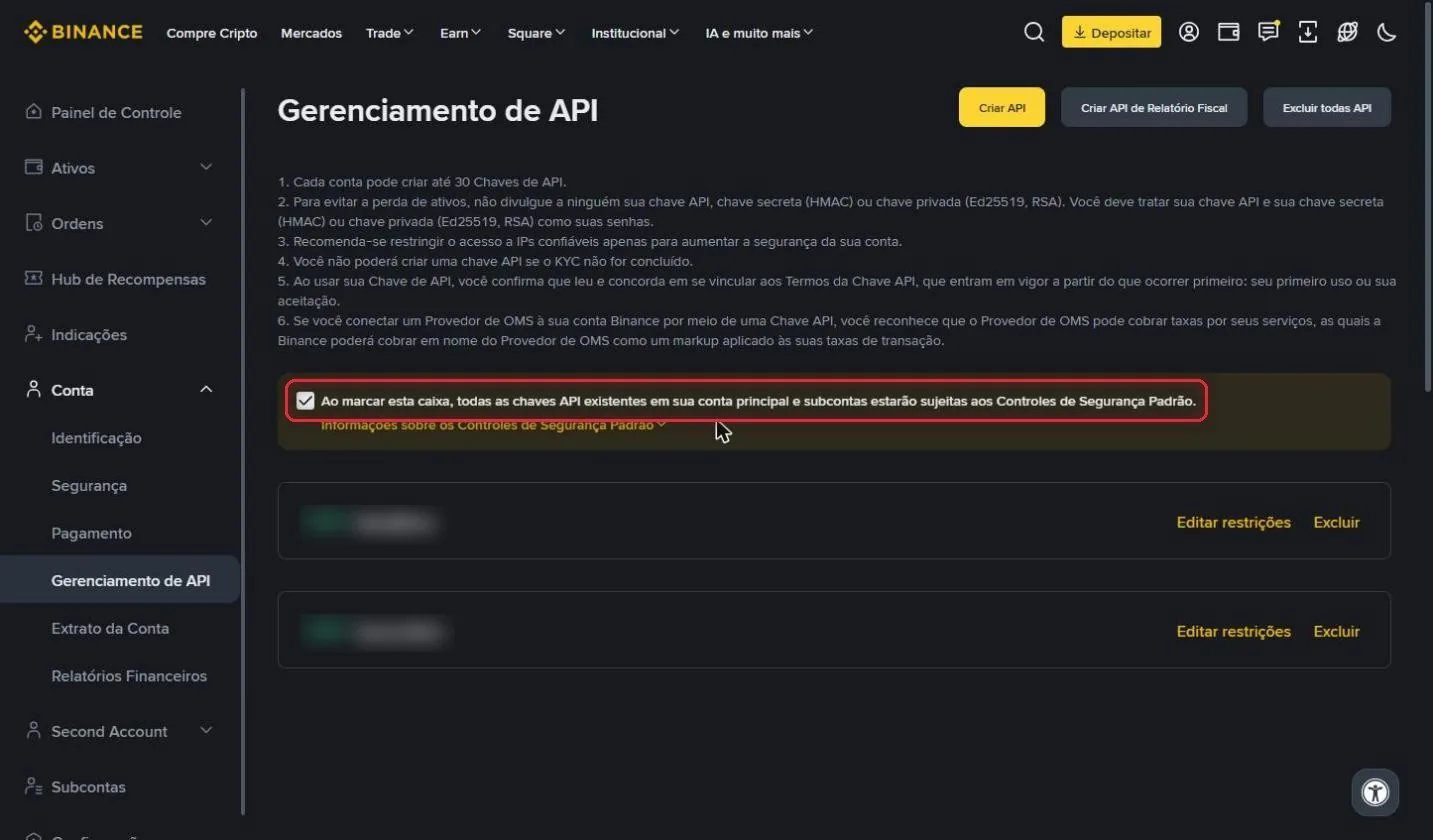
5
Click Criar API (Create API)
With the box unchecked, click the yellow Criar API (Create API) button.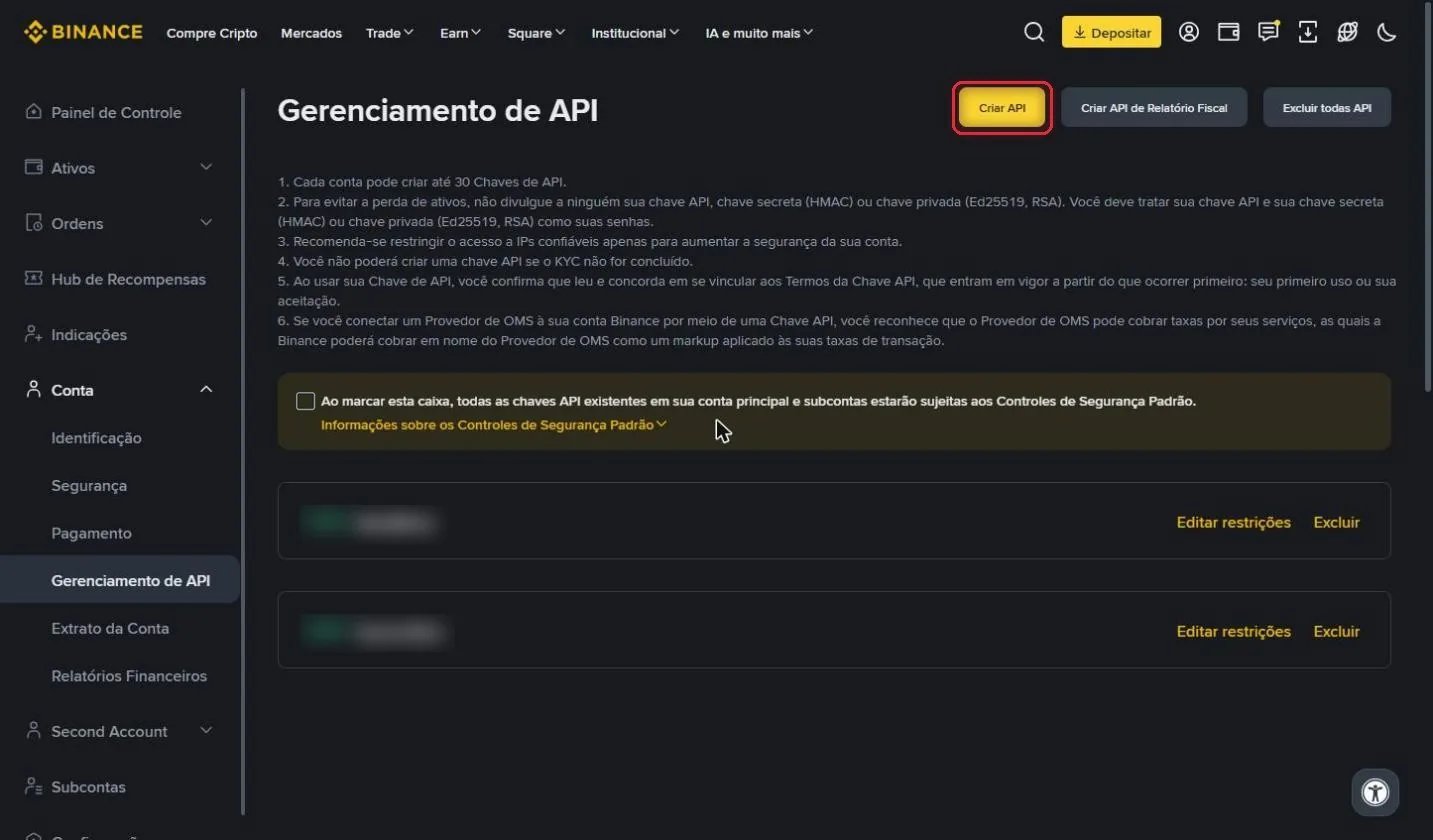
6
Choose Gerada pelo sistema (System generated)
Keep Gerada pelo sistema (System generated) selected and click Próximo (Next).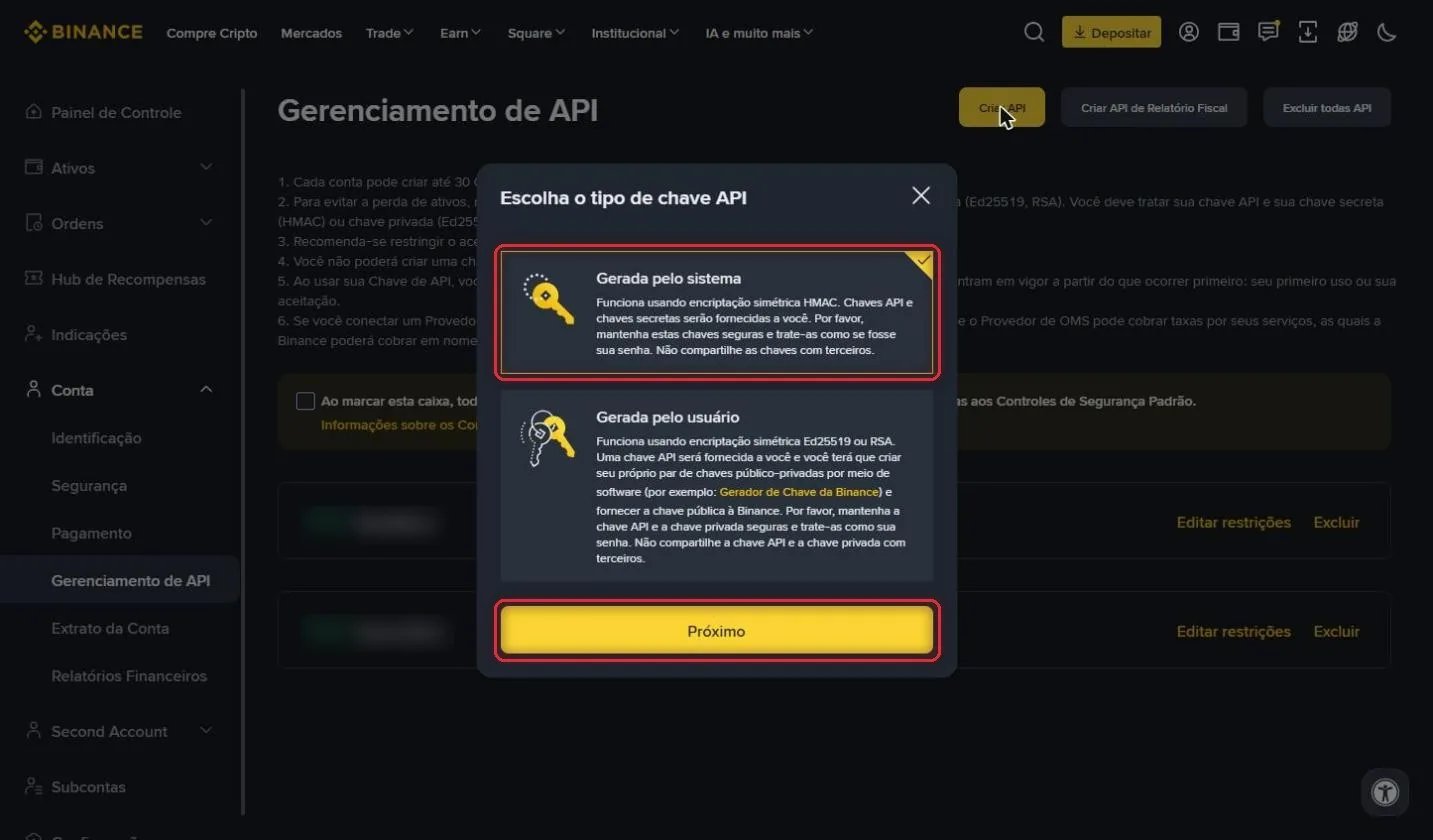
No passphrase: Binance keys don’t use a passphrase.
7
Name the key
Type a name for the key, for example RedMind, and click Próximo (Next).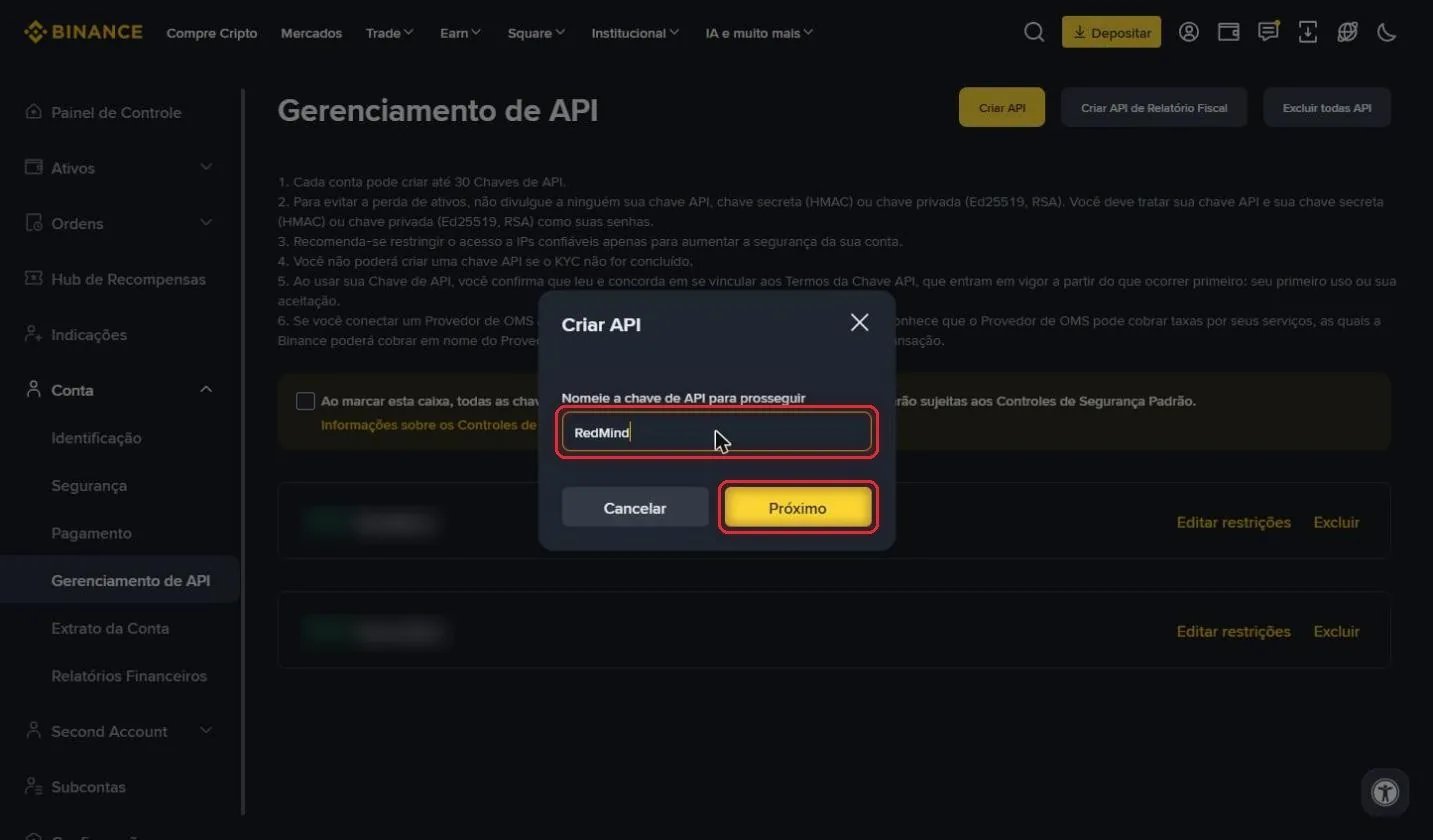
RedMind, and click Próximo (Next).8
Verify your identity
Complete the Binance security check with a Passkey, face recognition or a code.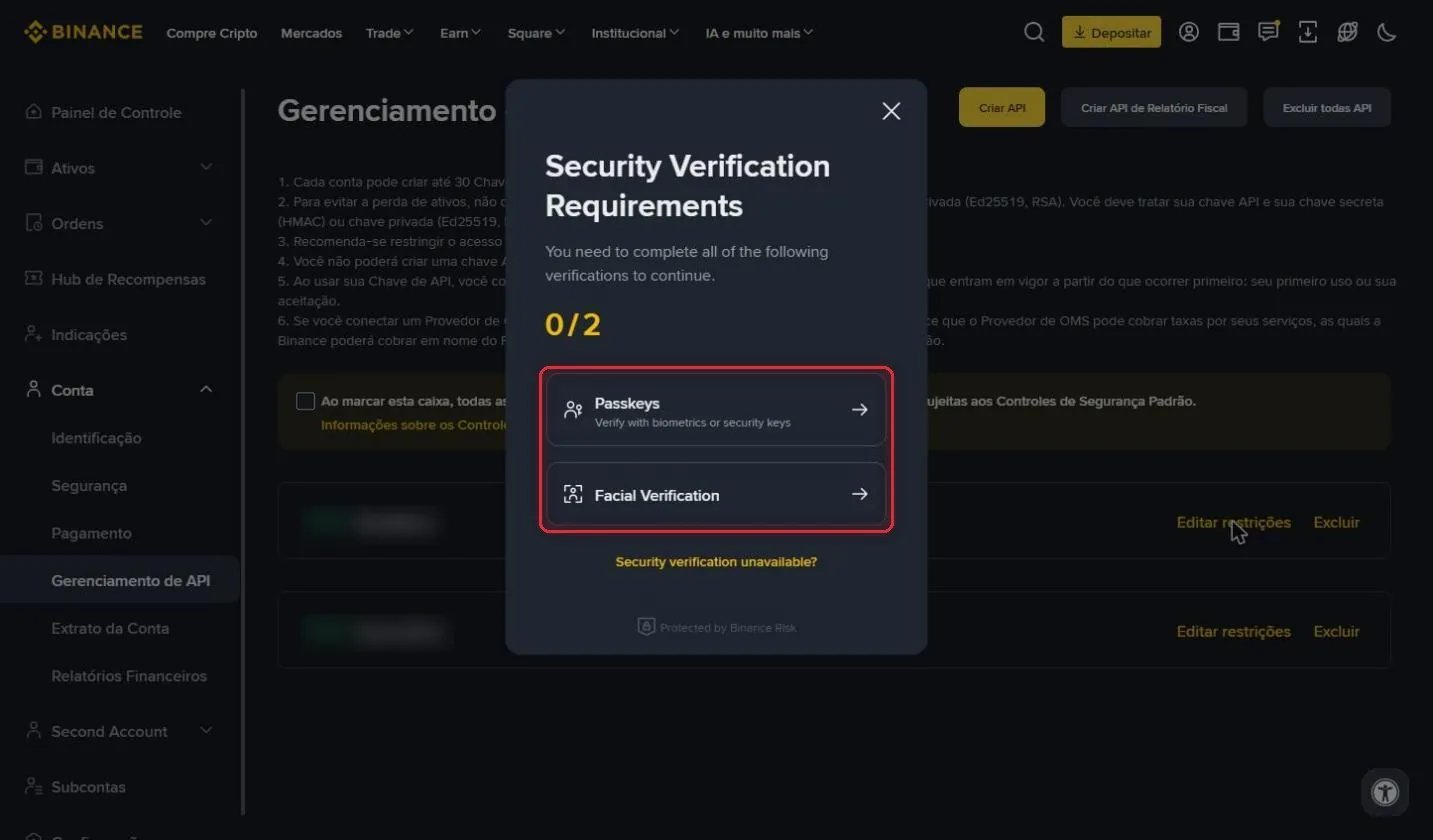
9
Copy the API Key and the Chave Secreta (Secret Key)
Click Copiar (Copy) next to the API Key and the Chave Secreta (Secret Key): the secret key is shown only once.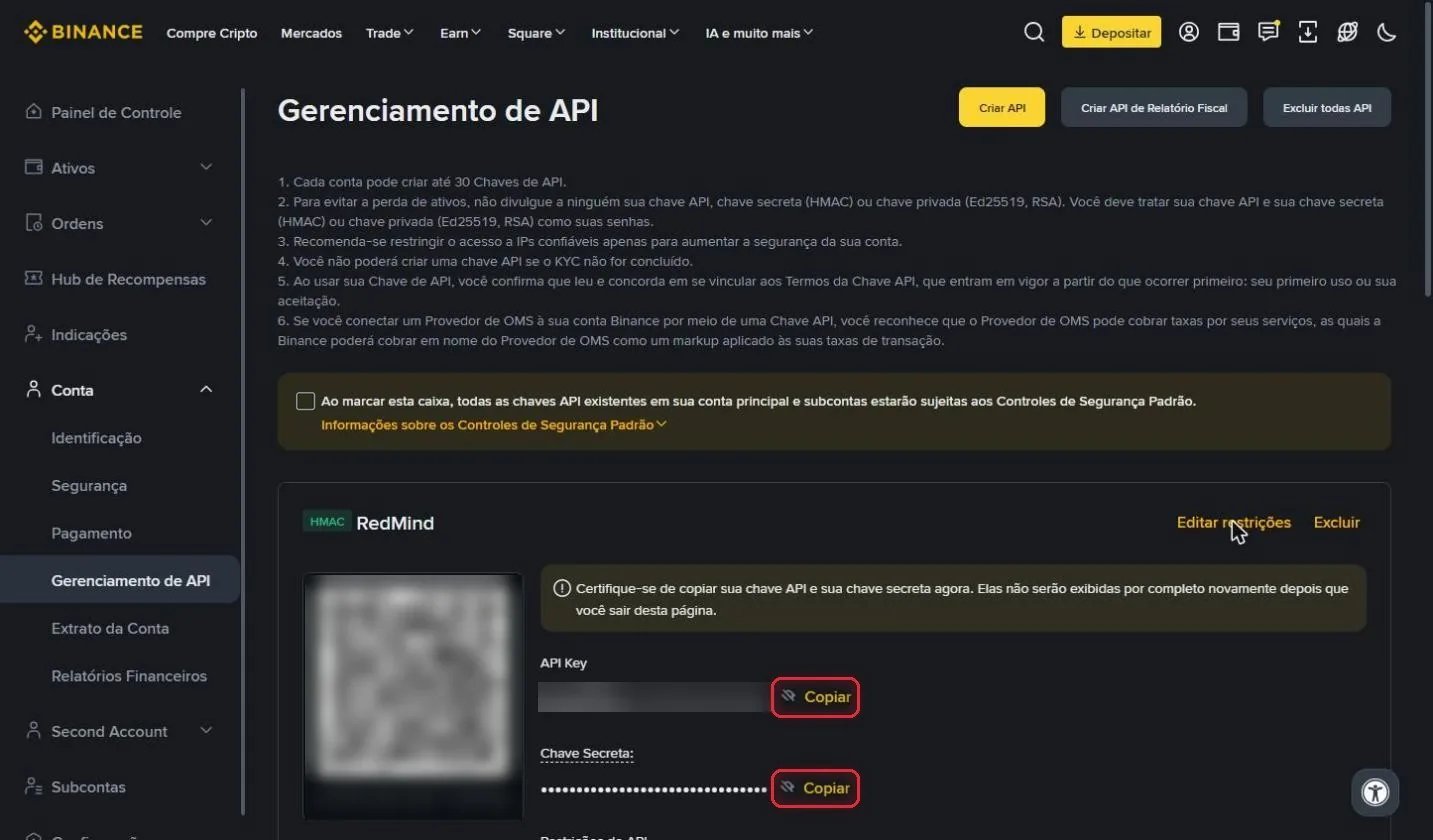
10
Enable Reading and Spot trading
Click Editar restrições (Edit restrictions), enable Habilitar Leitura (Enable Reading) and Spot trading, and never enable Habilitar Saques (Withdrawals).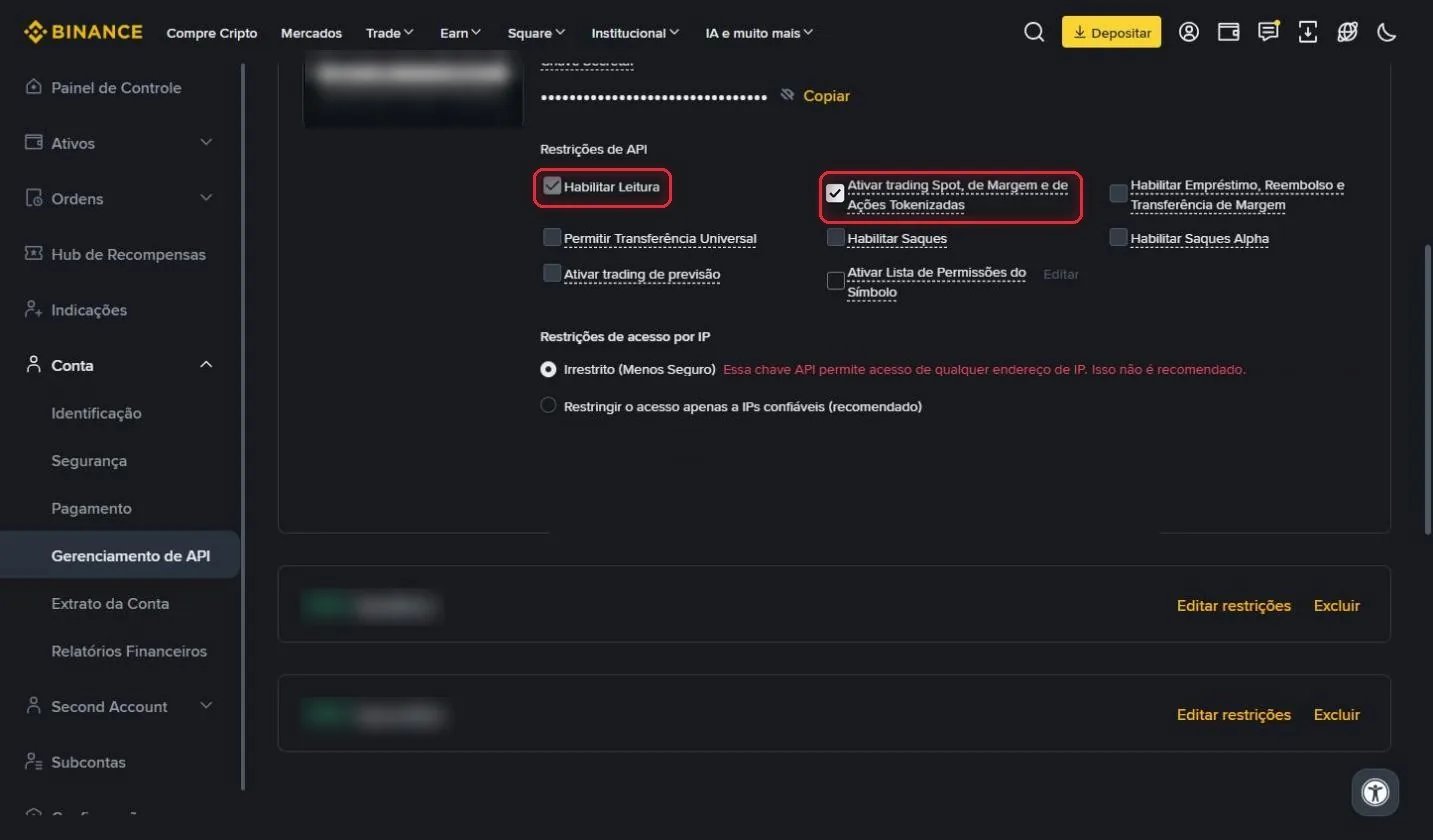
11
Keep access set to Irrestrito (Unrestricted) and save
Under Restrições de acesso por IP (IP access restrictions), keep Irrestrito (Unrestricted) and click Salvar (Save).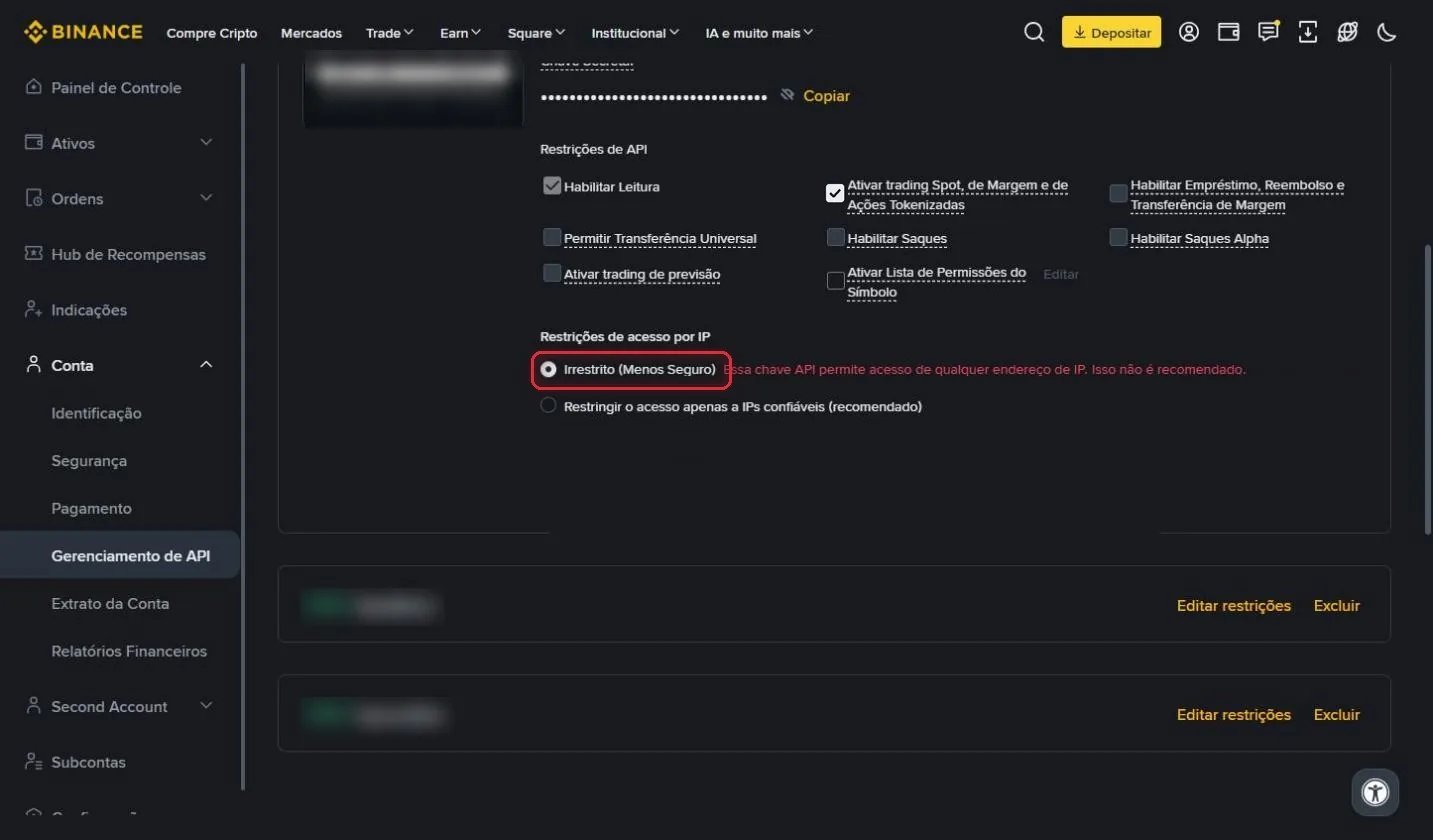
12
Paste the keys into RedMind
Paste Chave API (API key) and Segredo API (API secret) into the RedMind window and click Conectar e verificar (Connect and verify).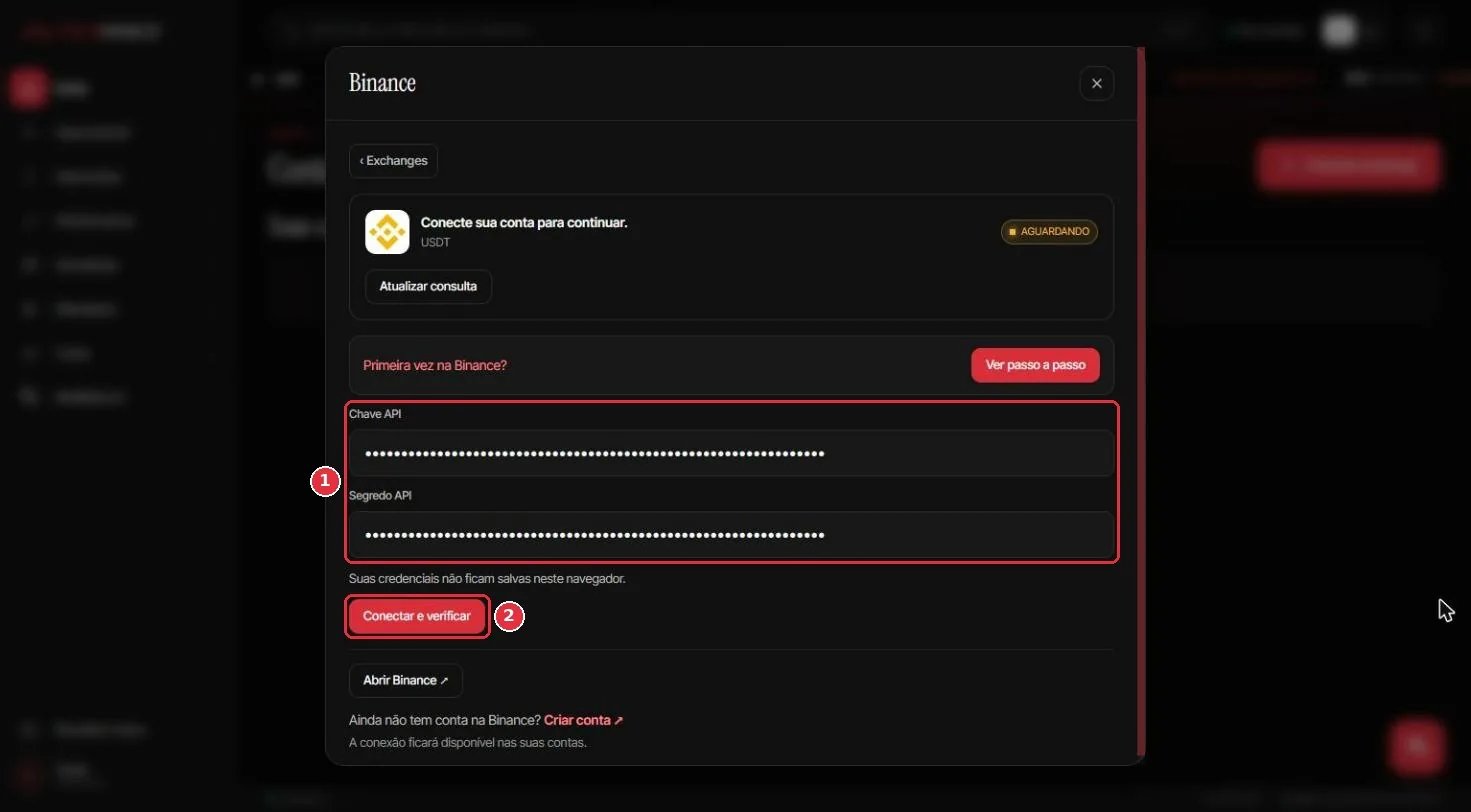
Next steps
Create your first portfolio
Describe the portfolio that you want and let RedMind AI build it.
Common questions
Find short answers about accounts, exchanges and portfolios.