

This guide shows the 16 steps of the RedMind tutorial “Connect an exchange (Kraken)”. Each step has a screenshot, the action and the details. Select a screenshot to zoom.
The RedMind Terminal and most exchange screens are in Portuguese. This guide gives each label as it shows on the screen, with the translation in parentheses.
1

In RedMind, open Contas e acessos (Accounts and access) and choose Kraken

In Contas e acessos (Accounts and access), click Conectar exchange (Connect exchange) and choose Kraken.
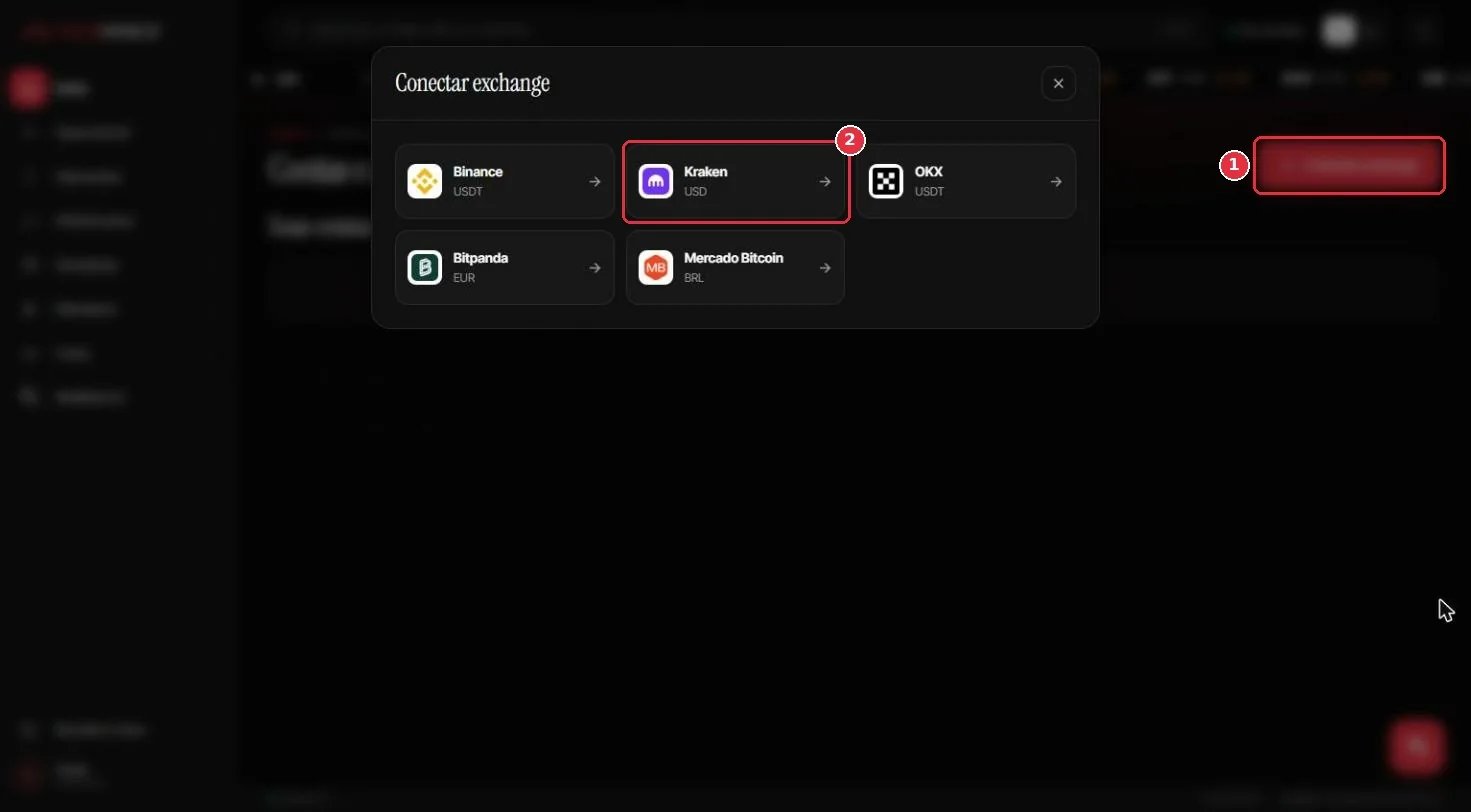
In RedMind, open Contas e acessos (Accounts and access) and choose Kraken
Log in to the RedMind Terminal. Click your name in the bottom-left corner and choose Contas e acessos (Accounts and access).Click Conectar exchange (Connect exchange) in the top-right corner. In the Conectar exchange window, choose Kraken.Keep this window open: you will come back to it in Step 16.
2

Log in to Kraken Pro

Open pro.kraken.com, enter your e-mail and password, and click Continuar (Continue).
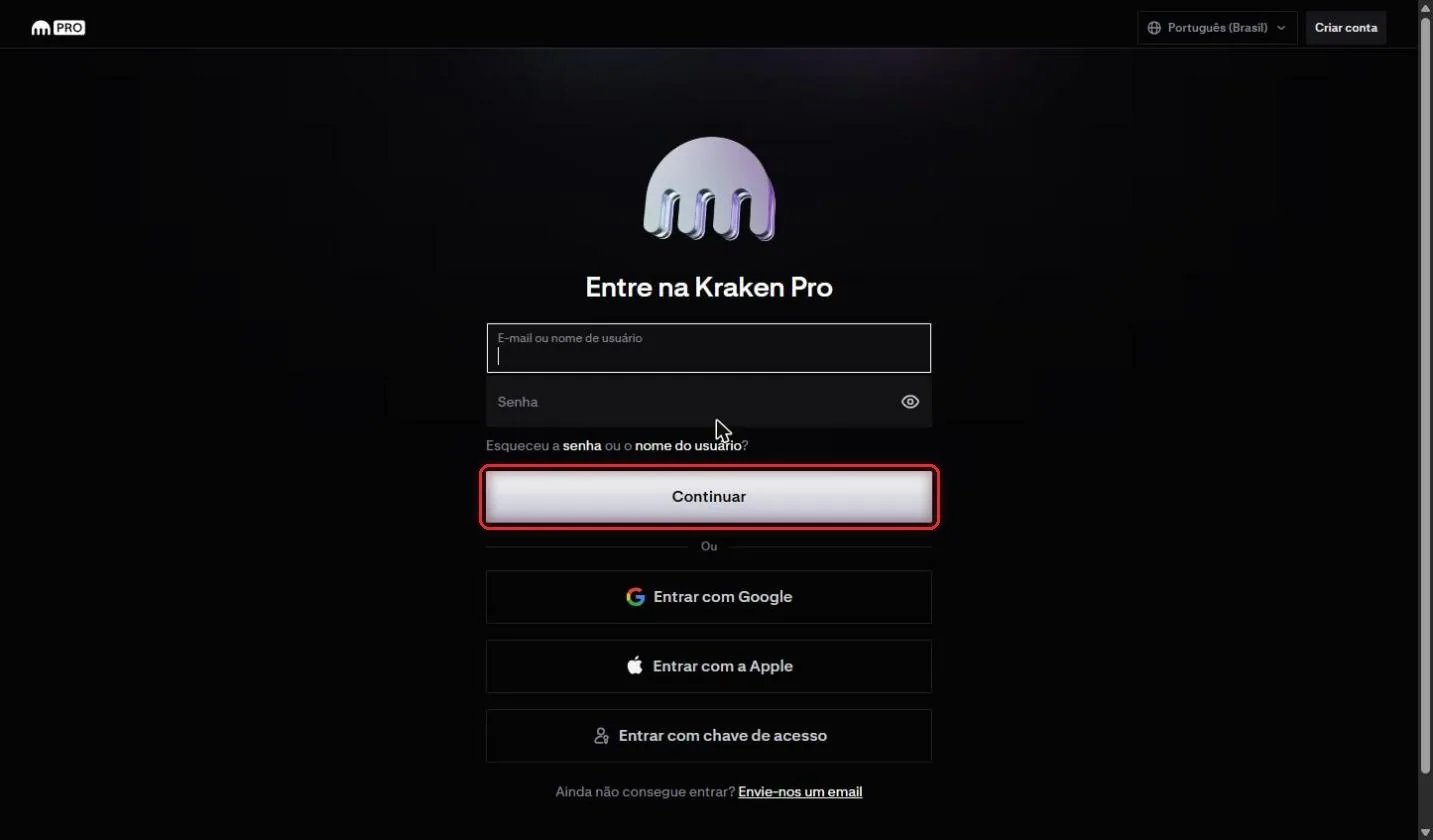
Log in to Kraken Pro
Go to pro.kraken.com on your computer, enter your email or username and your password, and click Continuar (Continue).
3

Enter the 2FA code

Enter the code from your authenticator app and click Inserir (Enter).
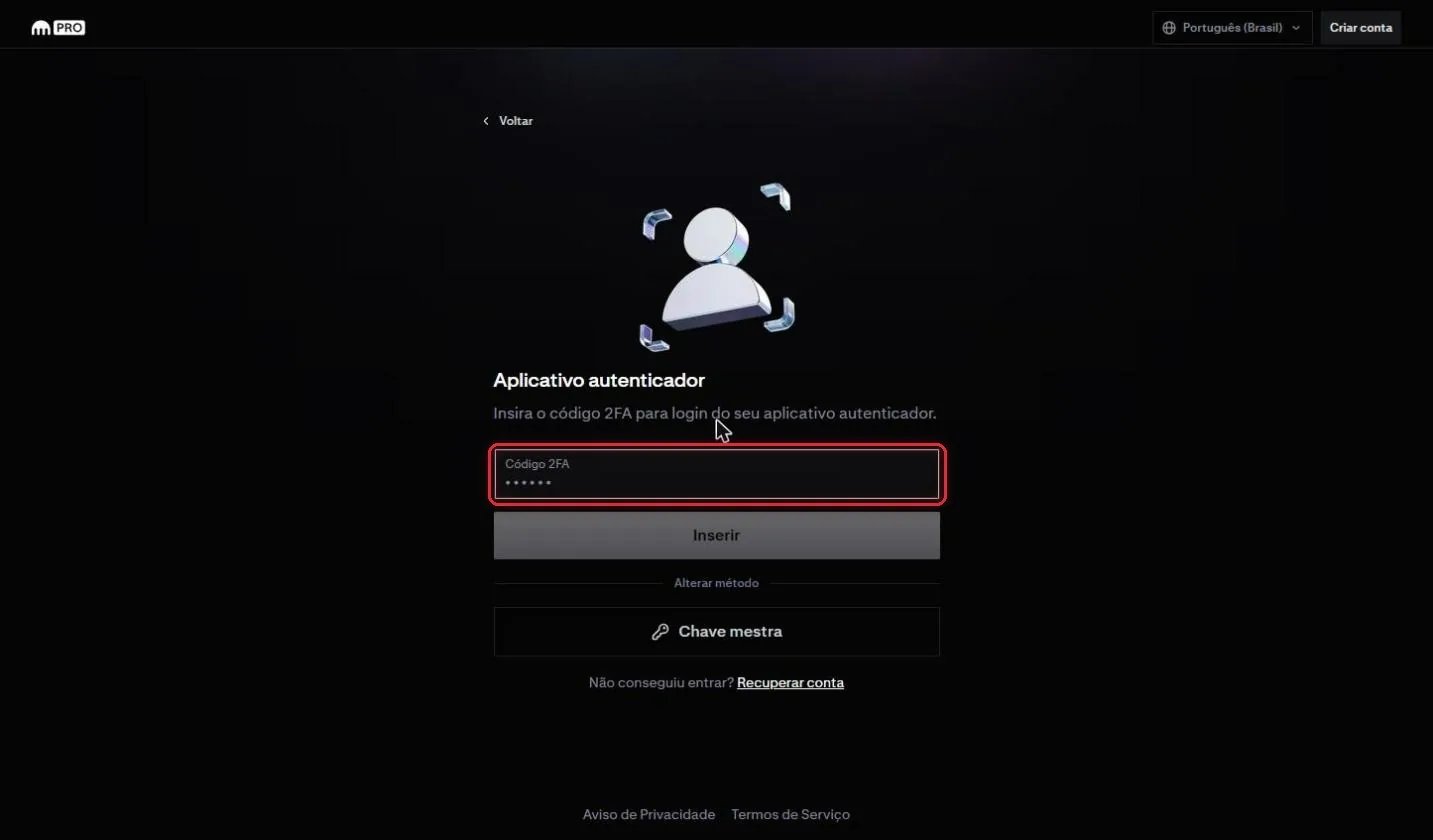
Enter the 2FA code
If your account has two-step verification turned on, enter the code from your authenticator app and click Inserir (Enter).
4

Open Profile > Configurações (Settings)

Click the profile icon in the top right corner, then Configurações (Settings).
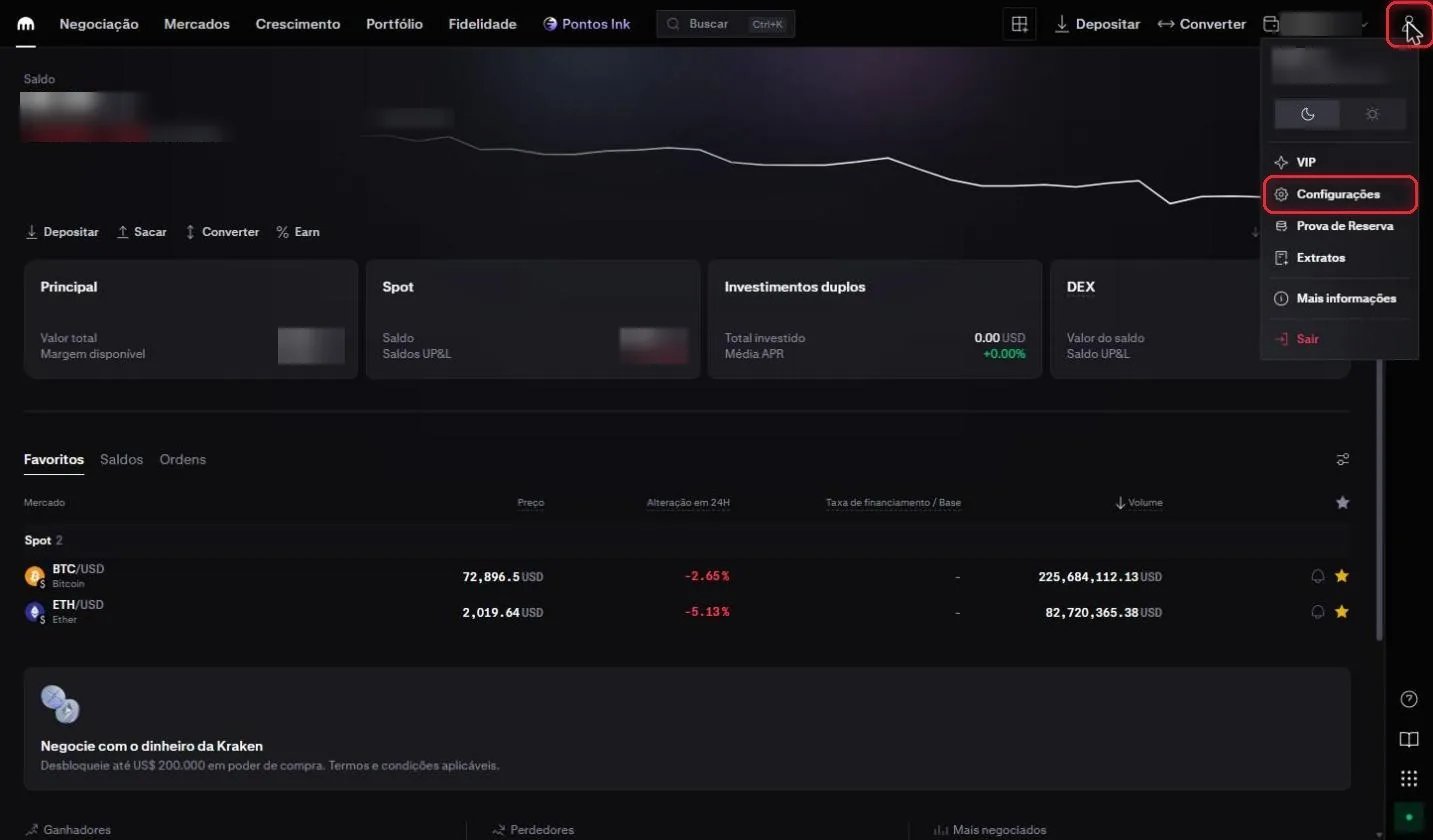
Open Profile > Configurações (Settings)
On the home screen, click the profile icon in the top-right corner, then click Configurações (Settings).
5

Unlock the global platform

Under Definições regionais (Regional settings), click Editar (Edit) next to Idioma (Language), tick the box and click Acessar plataforma global (Access global platform).
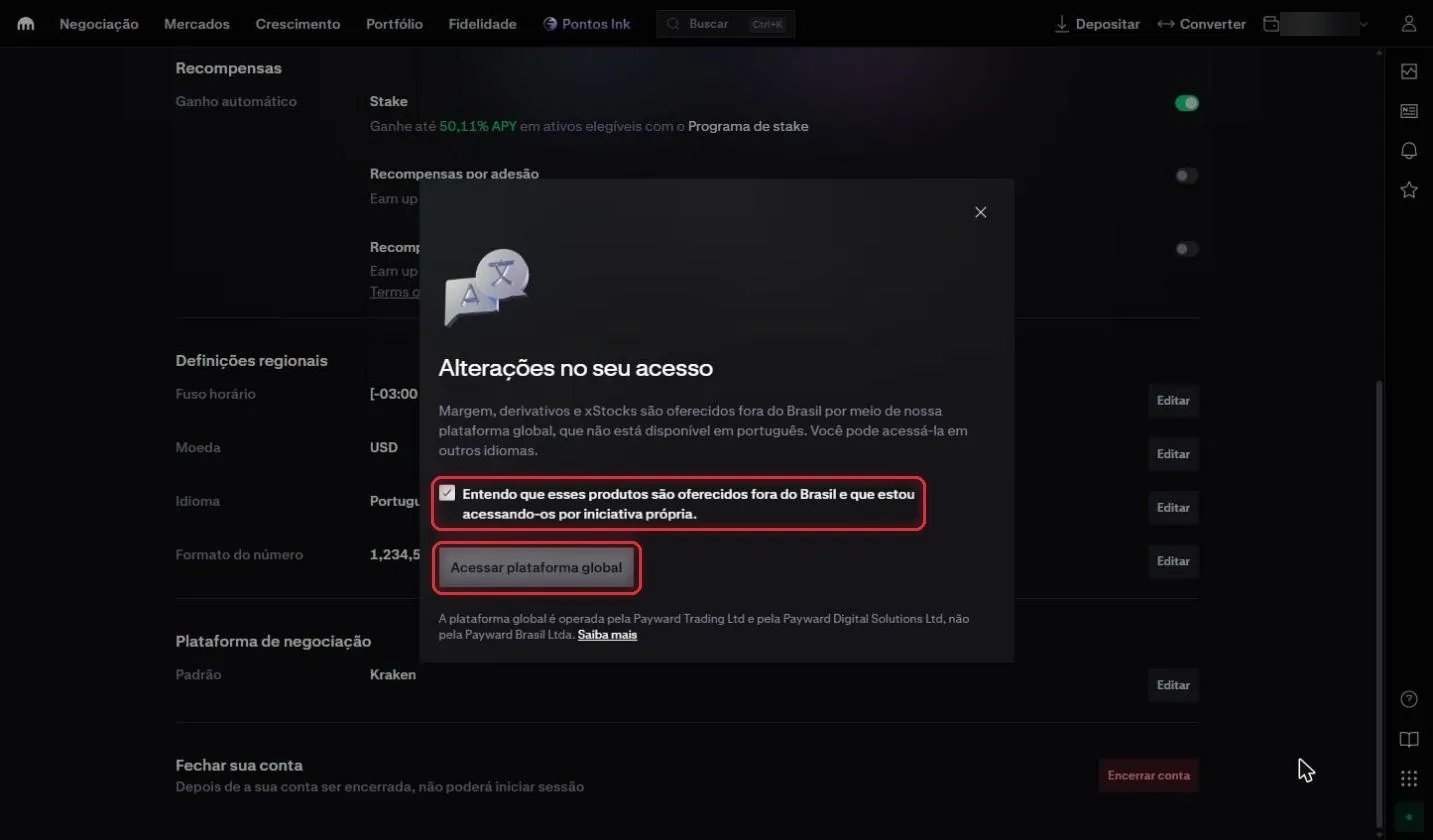
Unlock the global platform
Under Configurações → Conta (Settings → Account), scroll to Definições regionais (Regional settings) and click Editar (Edit) next to Idioma (Language). Kraken displays the Alterações no seu acesso (Changes to your access) notice: xStocks are available only on the global platform, which isn’t offered in Portuguese.Check Entendo que esses produtos são oferecidos fora do Brasil (I understand that these products are offered outside Brazil) and click Acessar plataforma global (Access global platform).
Why unlock xStocks: xStocks aren’t required, but we recommend them. RedMind can only tell whether your account can trade tokenized stocks at the moment it sends an order. Without xStocks, a tokenized stock order (placed by you or recommended by the AI) fails at execution.
6

Change the language to English (US)

Choose English (US) under Idioma (Language) and click Atualizar configurações (Update settings). Do not switch back to Portuguese.
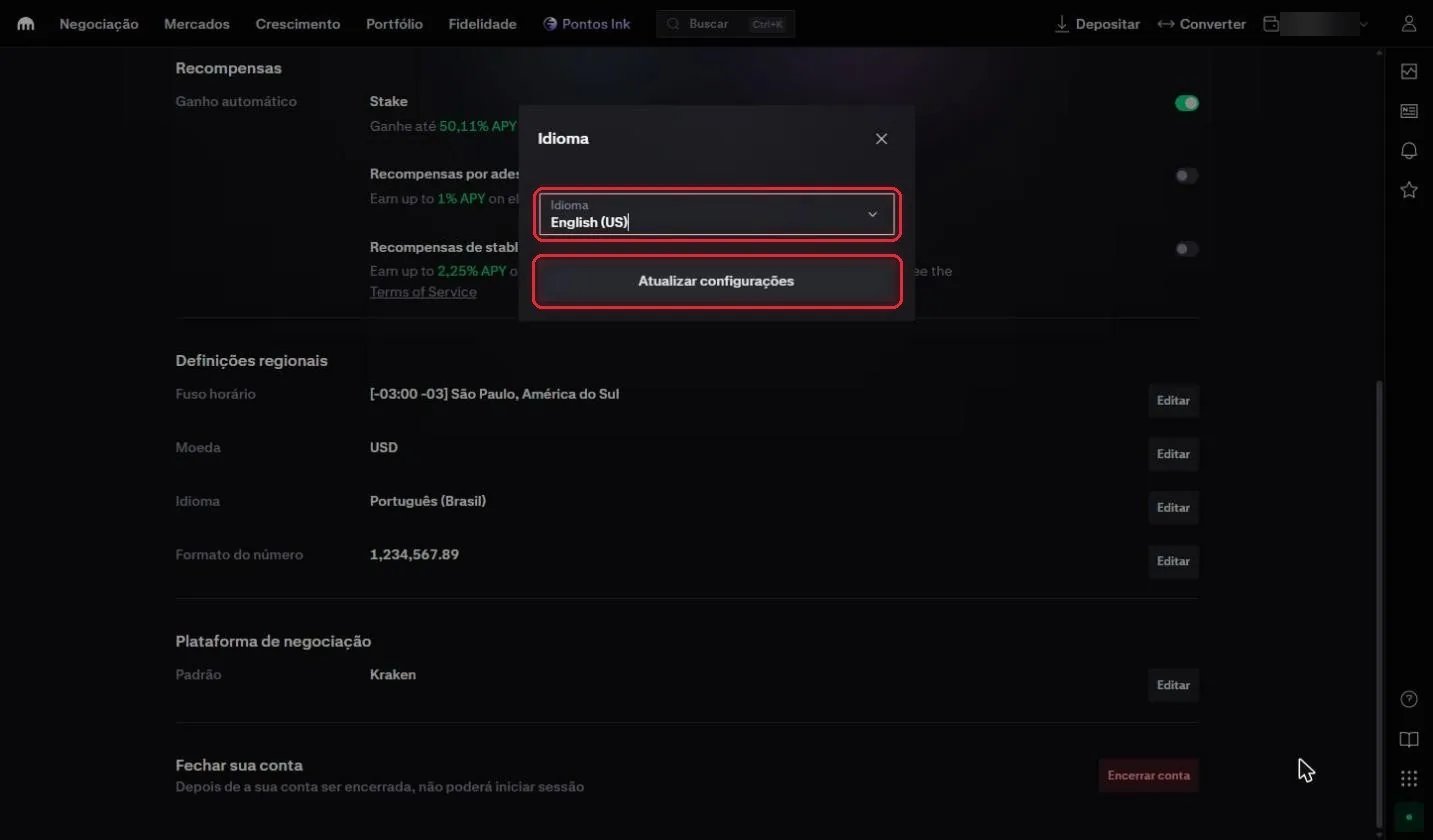
Change the language to English (US)
In the Idioma (Language) field, choose English (US) and click Atualizar configurações (Update settings).
Warning: Don’t switch the language back to Portuguese. In Portuguese, your account goes back to the Brazilian platform, which has no xStocks.
7

Check that xStocks is unlocked

Under Eligibility, check that xStocks shows Unlocked. If it does, you do not need to click.
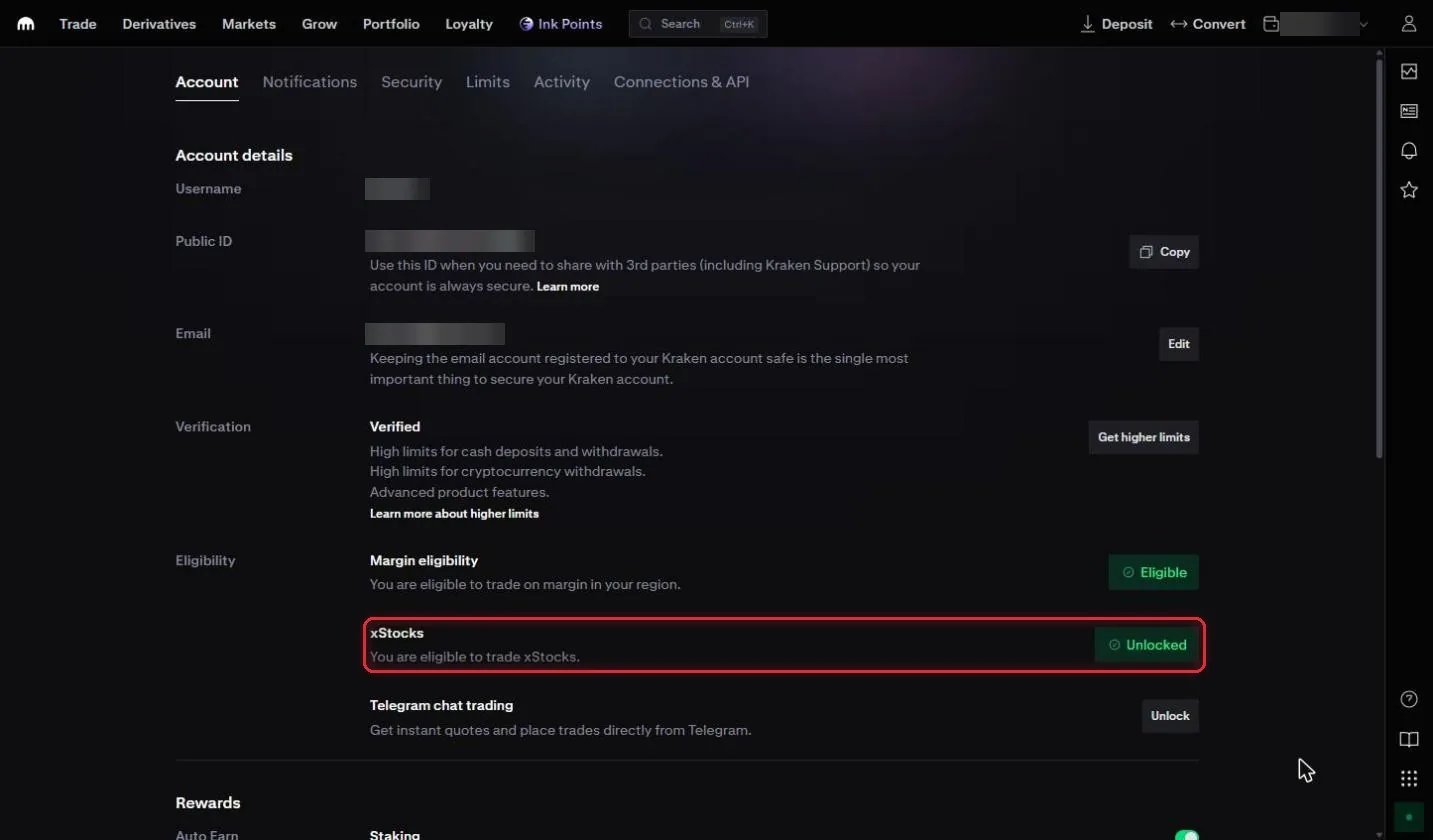
Check that xStocks is unlocked
On the Account tab, under Eligibility, check that xStocks shows Unlocked. If it doesn’t, click the button next to it and follow Kraken’s instructions.
Kraken is now in English: From here on, the screens and button names are in English. This tutorial shows each name exactly as it appears on the screen.
8

Open Connections & API and click Create API key

On the Connections & API tab, click Create API key under Spot trading API.
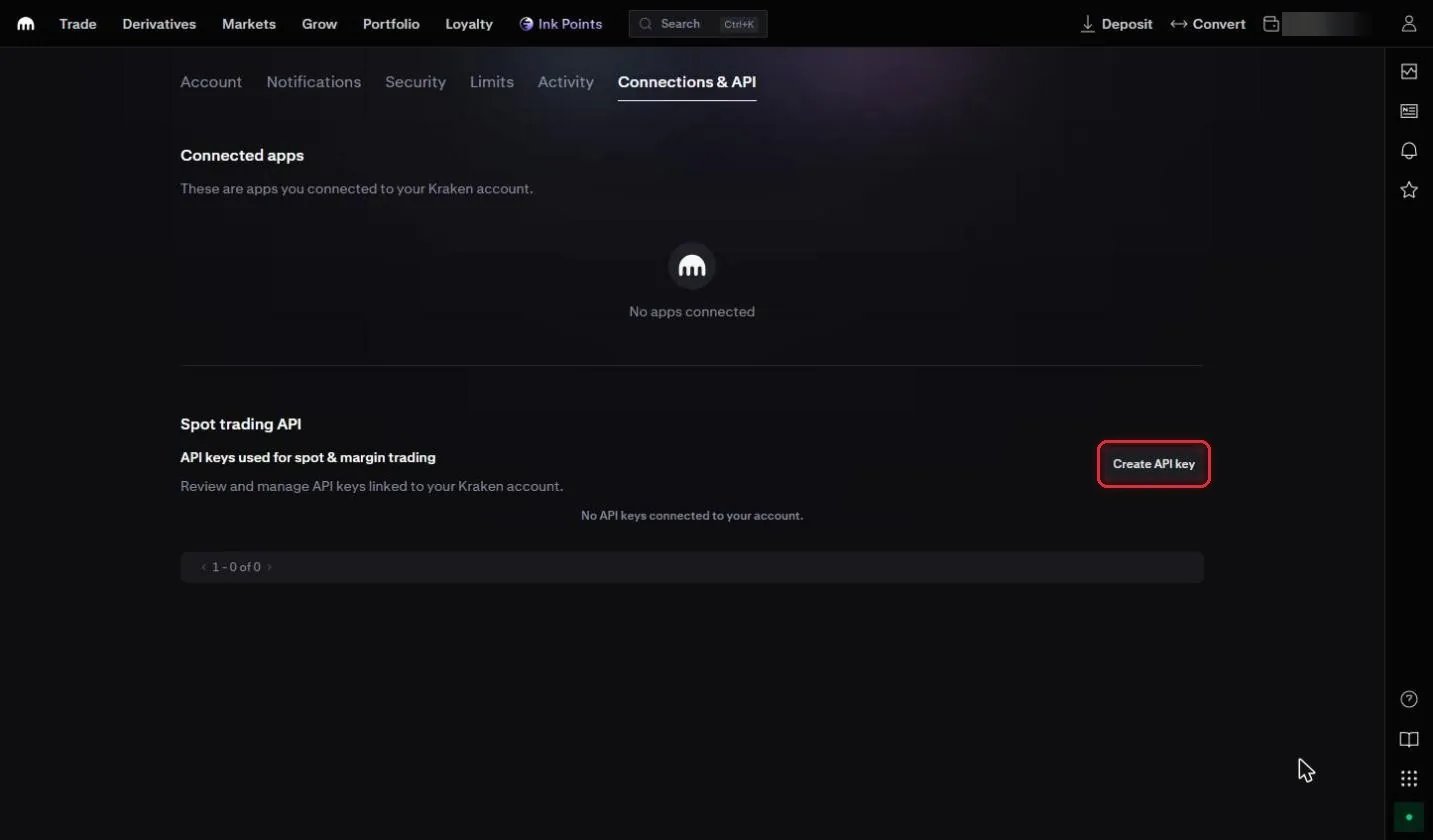
Open Connections & API and click Create API key
Open the Connections & API tab. Under Spot trading API, click Create API key.
9

Name the key

In the Name field, type an easy-to-remember name, for example RedMind.
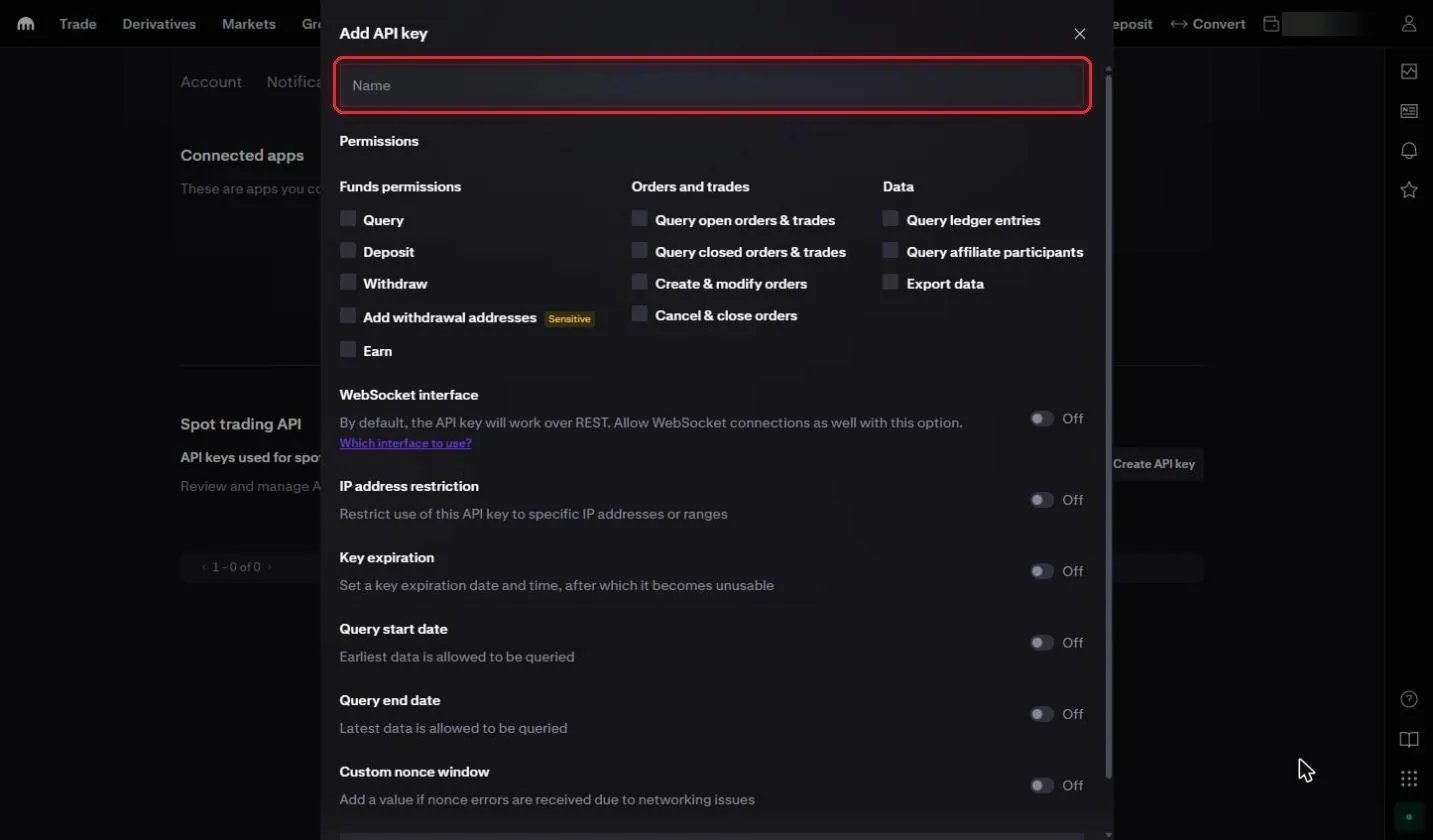
Name the key
The Add API key window opens. In the Name field, enter an easy-to-remember name, for example RedMind.
10

Select the permissions

Under Permissions, tick only the query, order and export permissions. Never tick Withdraw.
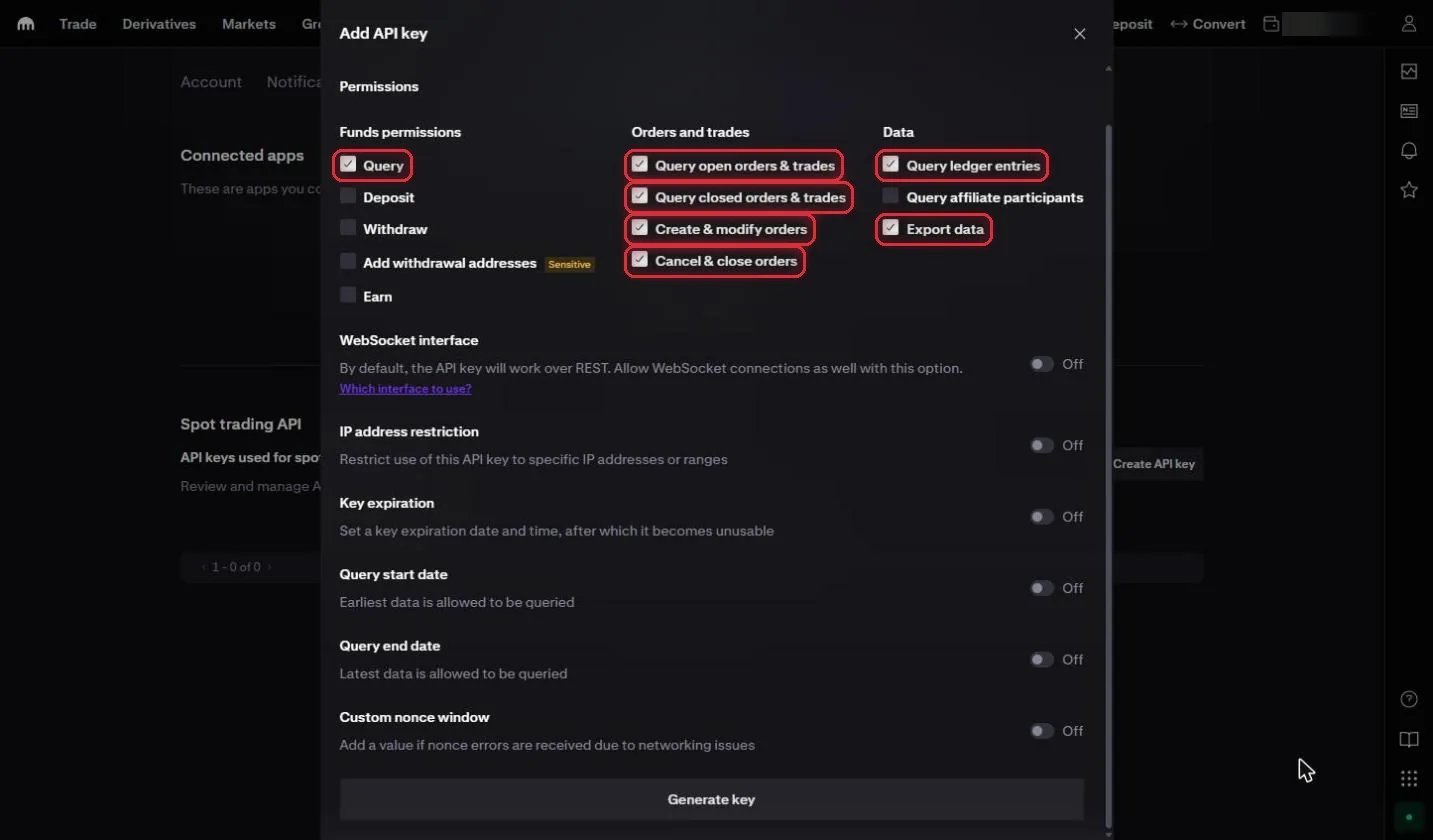
Select the permissions
Under Permissions, check:Query (under Funds permissions)Query open orders & tradesQuery closed orders & tradesCreate & modify ordersCancel & close ordersQuery ledger entriesExport data
Golden rule: never grant Withdraw permission: Never check Withdraw. Also leave Deposit, Add withdrawal addresses, Earn, and Query affiliate participants unchecked. RedMind trades for you, but it never withdraws.
11

Leave the IP restriction off

Keep the IP address restriction option off, because RedMind uses several IPs.
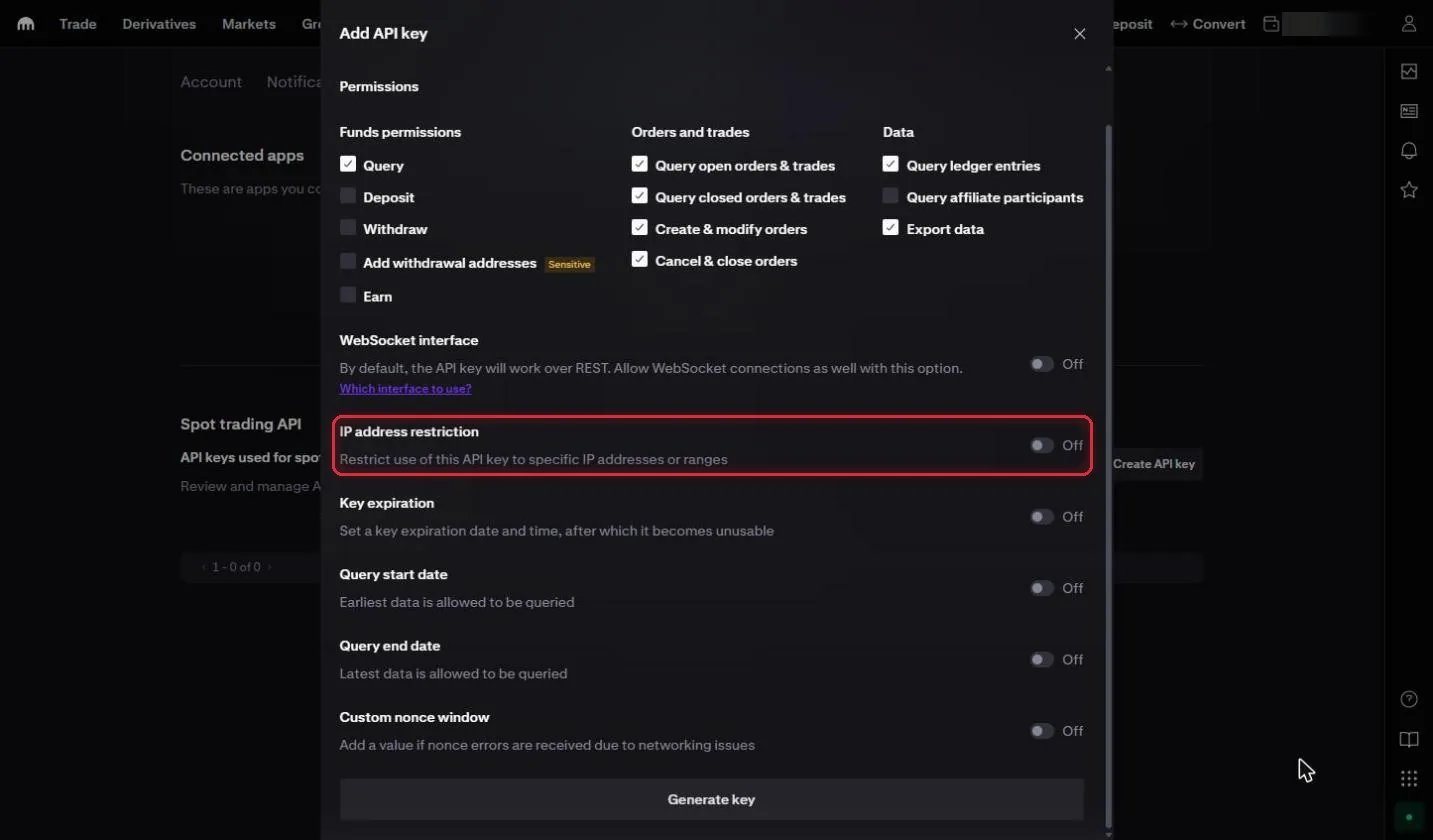
Leave the IP restriction off
Leave IP address restriction turned off, because RedMind uses several IPs.
12

Click Generate key

Keep the other options off, scroll to the bottom and click Generate key.
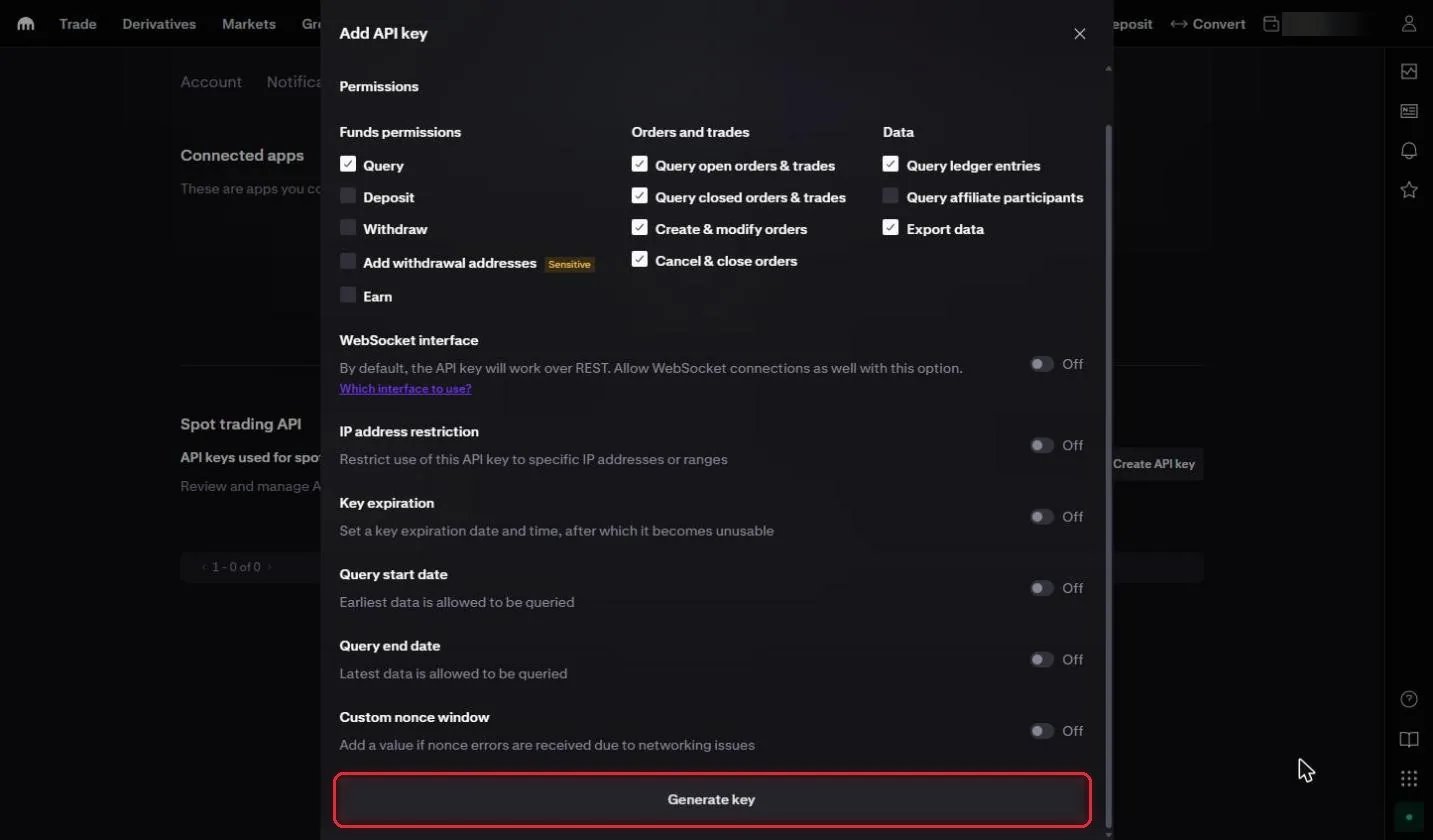
Click Generate key
Leave the other options turned off: WebSocket interface, Key expiration, Query start date and Query end date, and Custom nonce window.Scroll to the bottom and click Generate key.
13

Confirm with your authentication code

Type the authentication code in the Authentication code field and click Enter.
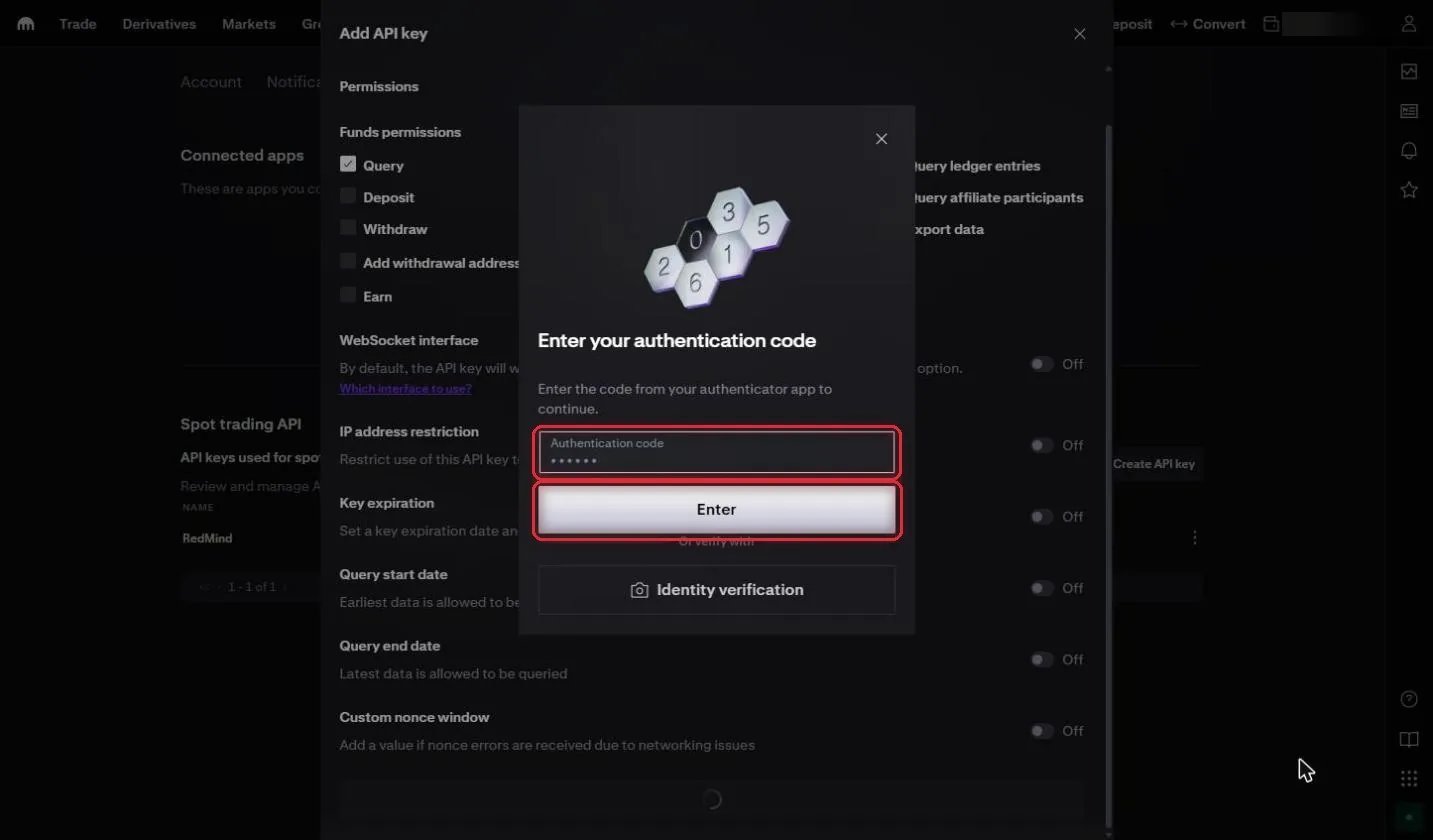
Confirm with your authentication code
Kraken asks for your authentication code one more time (Enter your authentication code). Enter the code in the Authentication code field and click Enter.
14

Copy the API key and the Private key

Copy the API key and the Private key and save both. The Private key is shown only once.
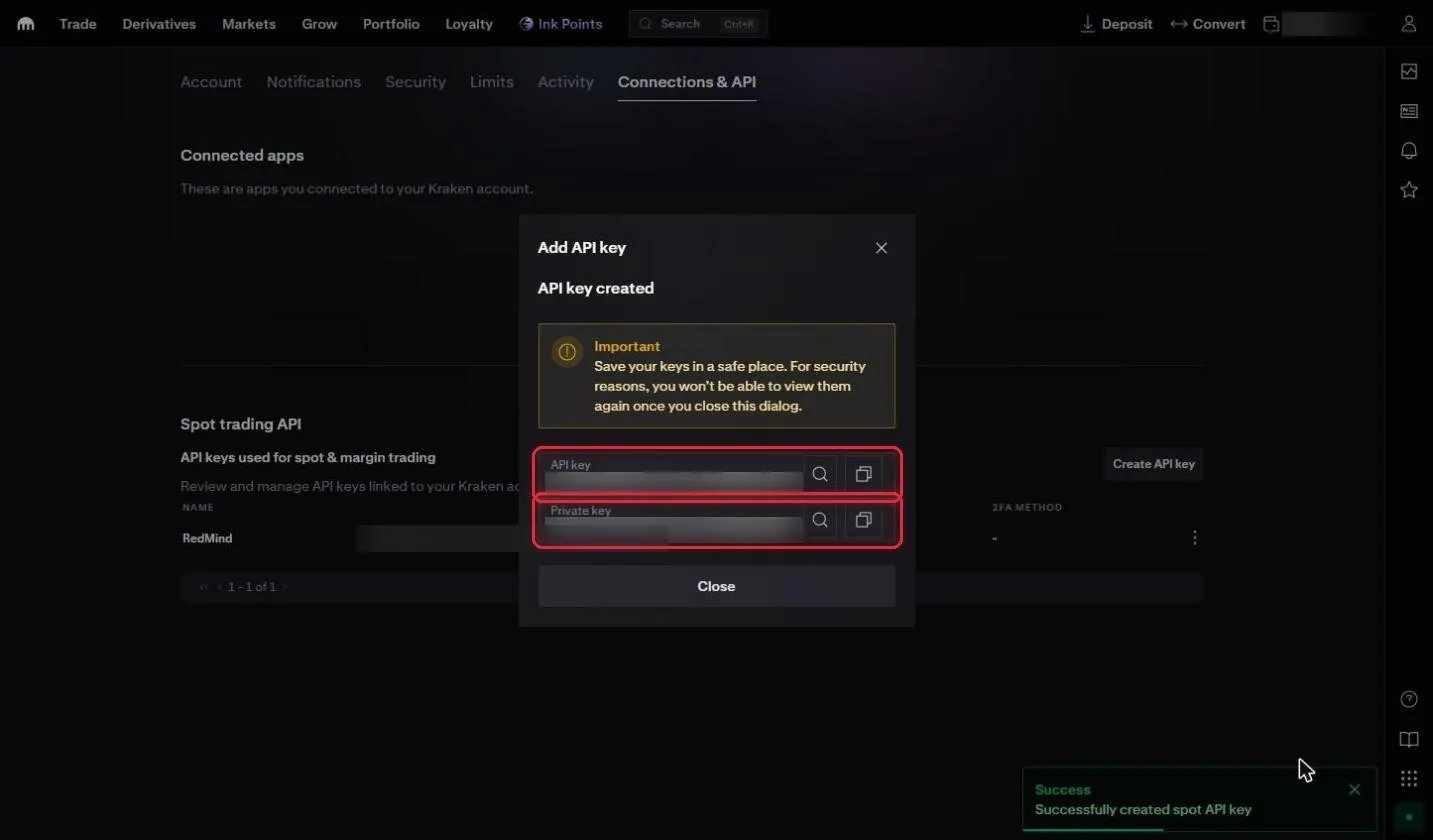
Copy the API key and the Private key
Kraken shows API key created. Click the copy button next to the API key and next to the Private key, and store both somewhere safe.
Warning: After you click Close, Kraken won’t show the Private key again. If you lose it, you’ll have to create a new key.
15

Check the key in the list

Check that the RedMind key shows in the Spot trading API list. You do not need to click.
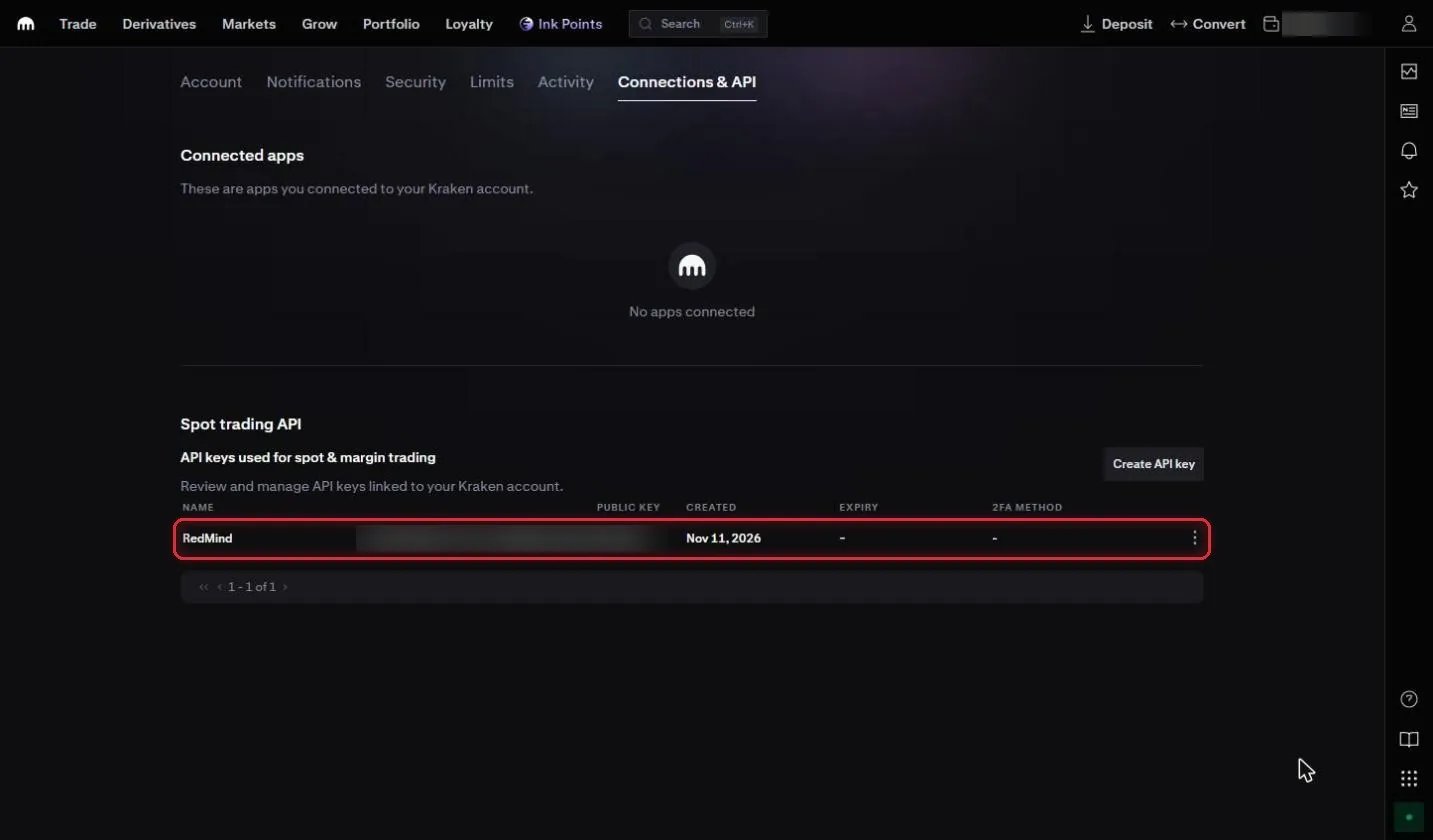
Check the key in the list
Your new RedMind key now appears in the Spot trading API list.
16

Paste the keys into RedMind

Paste Chave API (API key) and Segredo API (the Private key) into the RedMind window and click Conectar e verificar (Connect and verify).
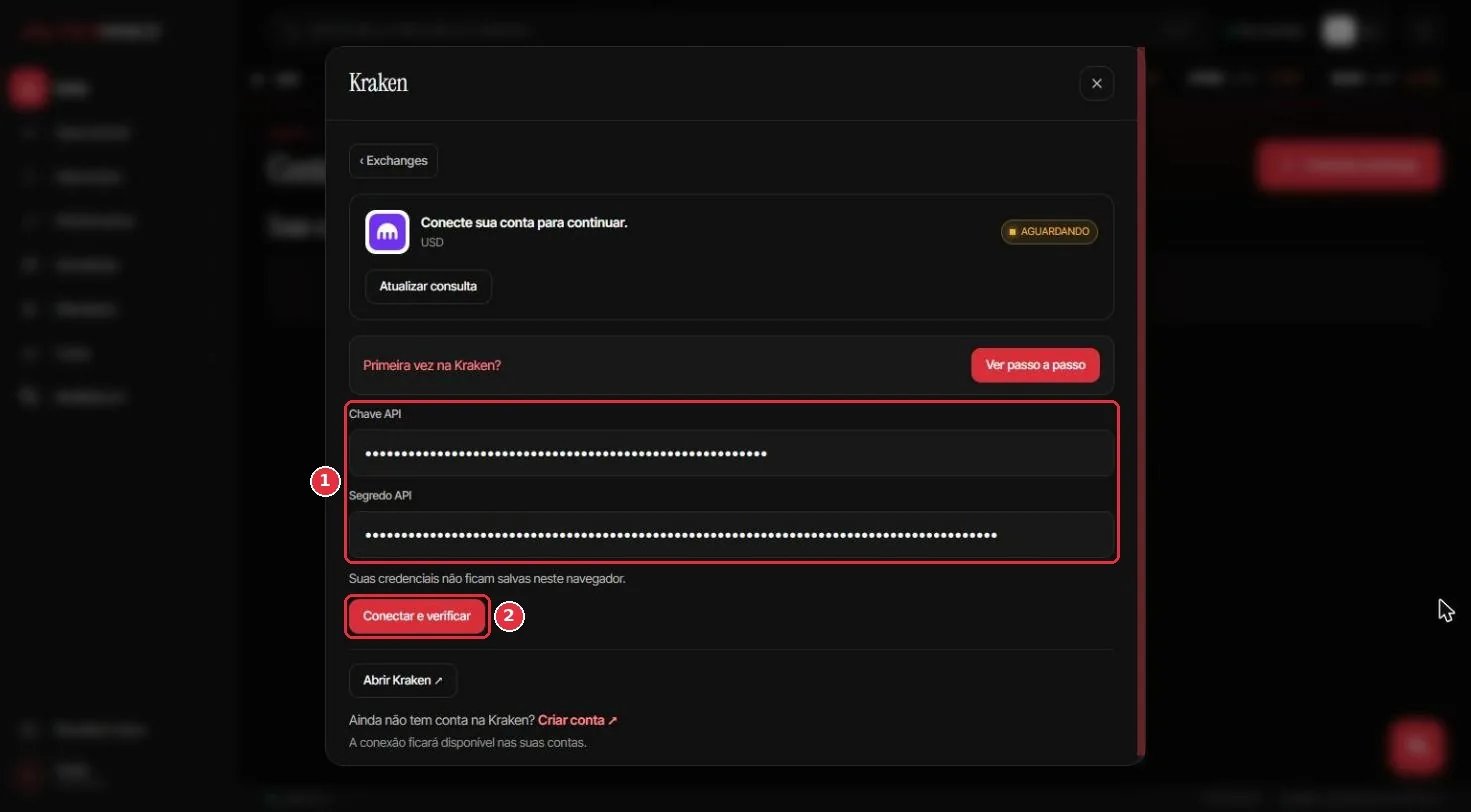
Paste the keys into RedMind
Go back to RedMind, to the Kraken window, and paste:Chave API (API key): the API key that you copied from KrakenSegredo API (API secret): the Private keyClick Conectar e verificar (Connect and verify). When the badge changes to Conectada (Connected), you see the available USD balance.

Next steps

Create your first portfolio

Describe the portfolio that you want and let RedMind AI build it.

Common questions

Find short answers about accounts, exchanges and portfolios.